
Accessibility
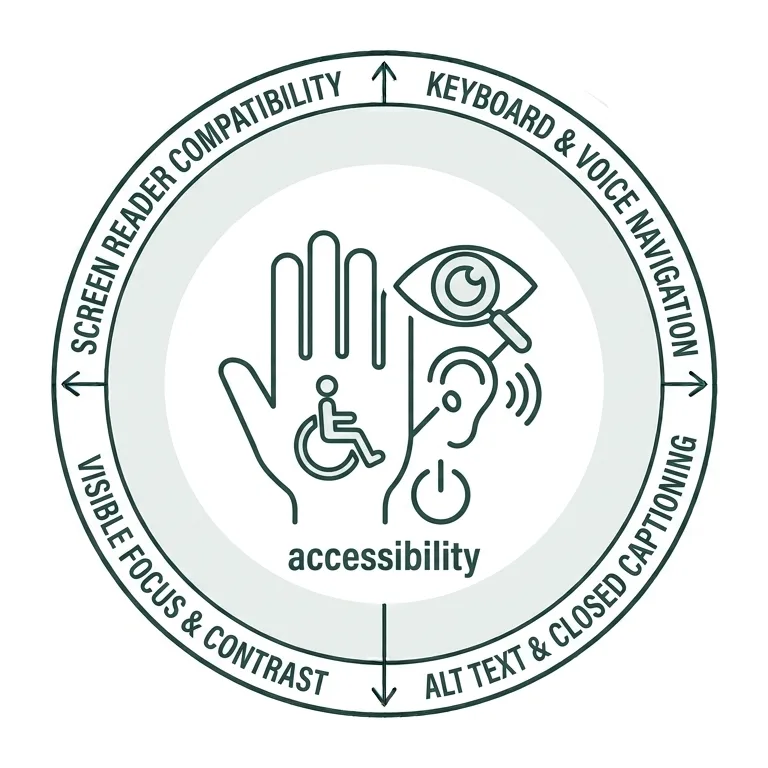
Accessible Websites Benefit Everyone
Siteimprove’s Accessibility features help site editors identify areas for improvement, prioritize quick fixes, develop longer-term strategies, and monitor progress over time. While automated tools can identify many important accessibility issues and help remove barriers for people with disabilities, no automated checker can evaluate every error, context, or aspect of content quality. Regular manual review is therefore also essential to maintaining an accessible website.
With this in mind, let’s explore a few important categories that can help you keep your site accessible.
Essential Web Accessibility & Siteimprove
In this presentation, we’ll go over how to make the most efficient and effective use of Siteimprove’s accessibility checking features to reach a bigger audience.
Accessible by Design
Digital accessibility means intentionally designing technology, content, and virtual experiences so people with disabilities can use them with equal ease and timeliness. Proactive accessibility benefits everyone, strengthens inclusion and engagement, and reflects Wake Forest’s Pro Humanitate ideals.
Accessible websites also help you reach a larger audience. Approximately one in six people worldwide—and as many as one in four people in the United States—has a disability. Creating important digital content without accessibility in mind risks excluding a significant portion of your potential audience, including students, researchers, alumni, faculty, and staff.
Accessibility is an ongoing process, not a one-time task or checkbox. As technology, content, and user needs evolve, so must our efforts to make digital experiences more inclusive. Every step toward accessibility—and every accessible project or piece of content you create—helps build a more welcoming digital environment for everyone.
For more information on the technology accessibility concepts discussed in this guide, please reach out to the IS Technology Accessibility Team by emailing or reaching out directly to Eudora Struble, Executive Director of Technology Accessibility, at or 336.758.1960.
Getting Started
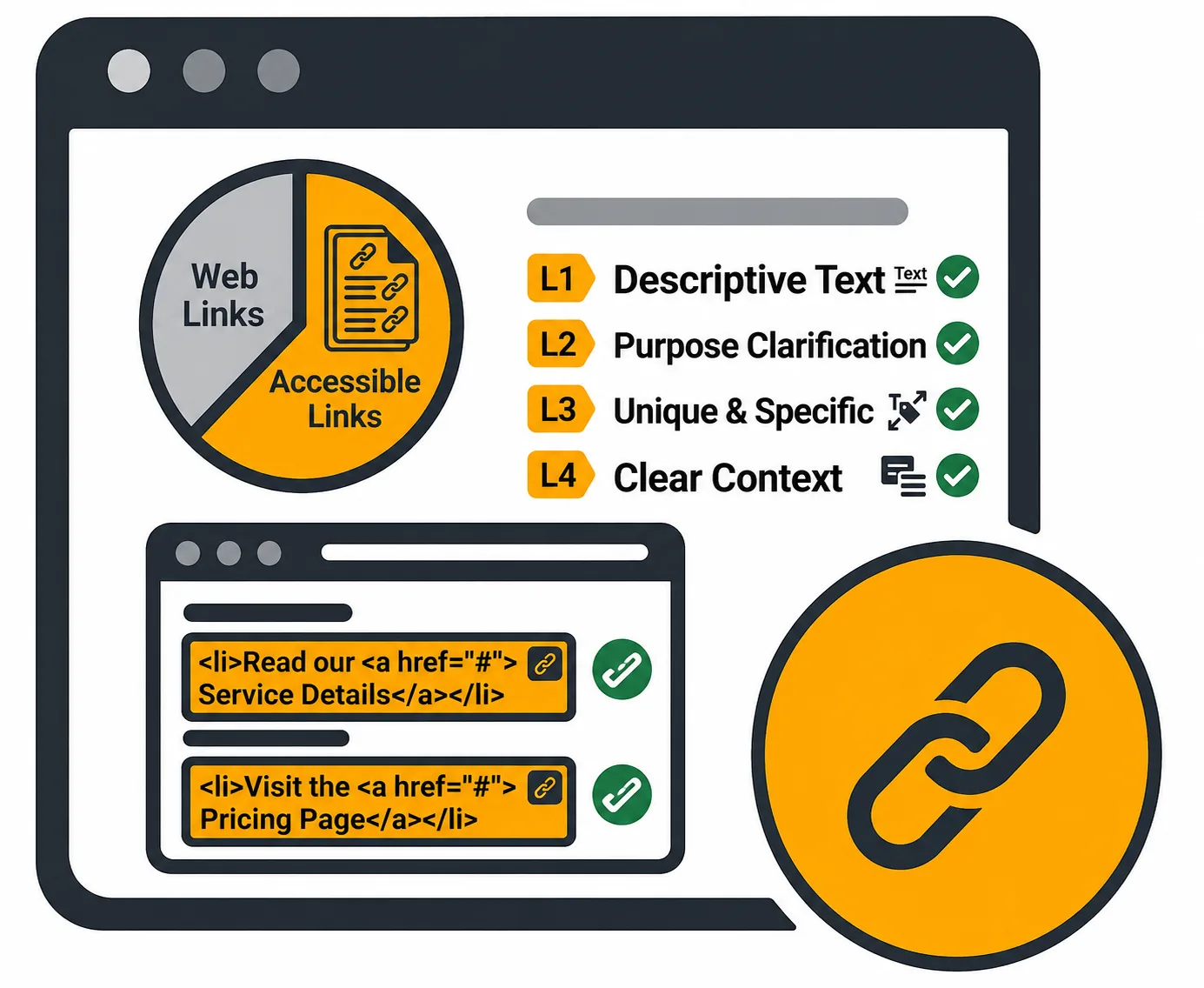
If you’re new to Siteimprove’s Accessibility module or haven’t used it in a while, this tutorial will help you get up to speed. You’ll learn how to use the Accessibility Dashboard, review and filter accessibility reports to identify issues, and recognize some of the most common accessibility challenges that impact our websites.
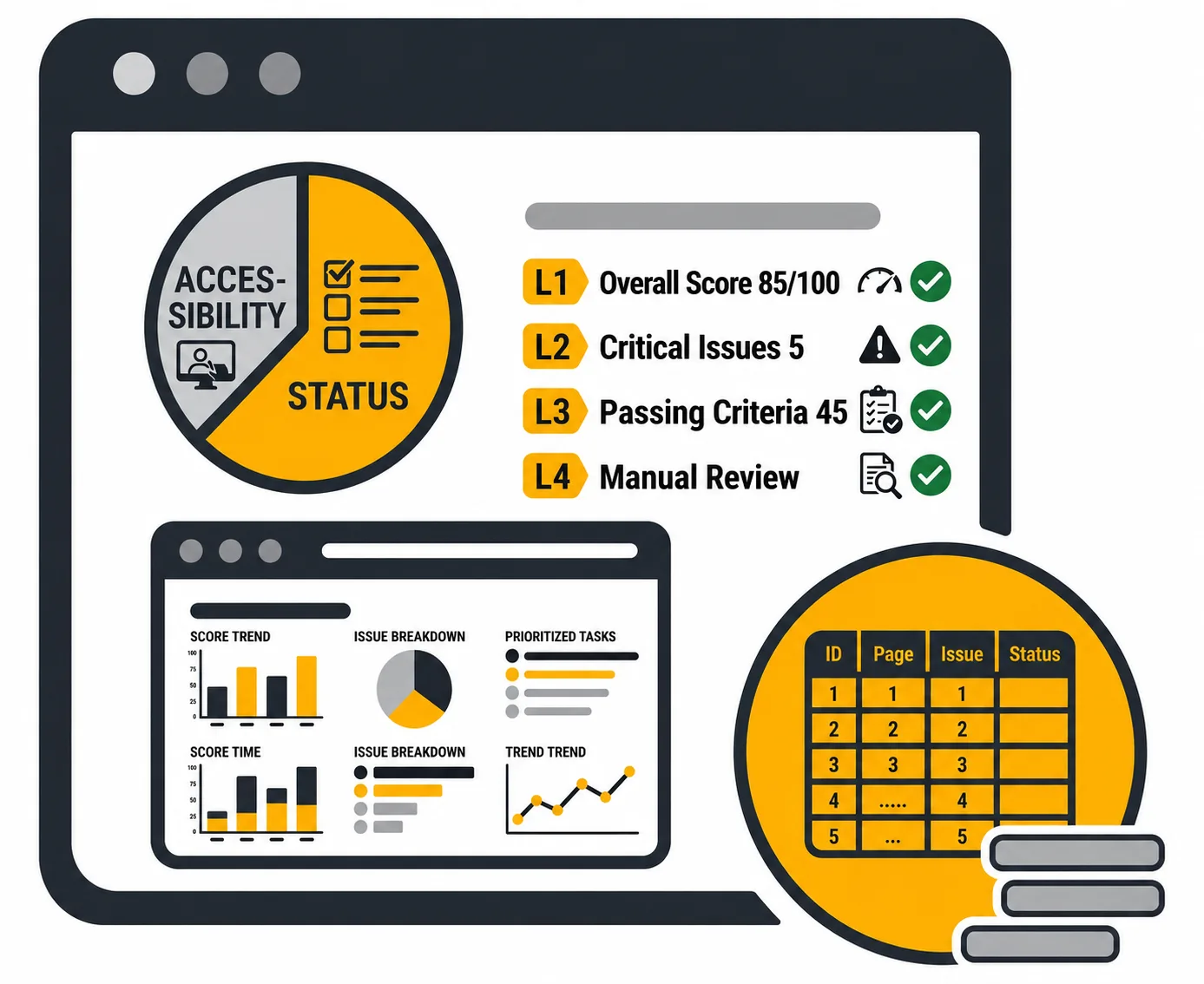
Heading Structure
Headings organize the content of a web page or document much like a table of contents or essay outline. They provide visitors with a visual and informational roadmap, making it easier to find relevant information and engage with your content. Headings also help assistive technologies, such as screen readers, understand the structure of your content and enable people with disabilities to navigate it more easily.
In this tutorial, we’ll focus on how you can create proper headings on your pages that are accessible.
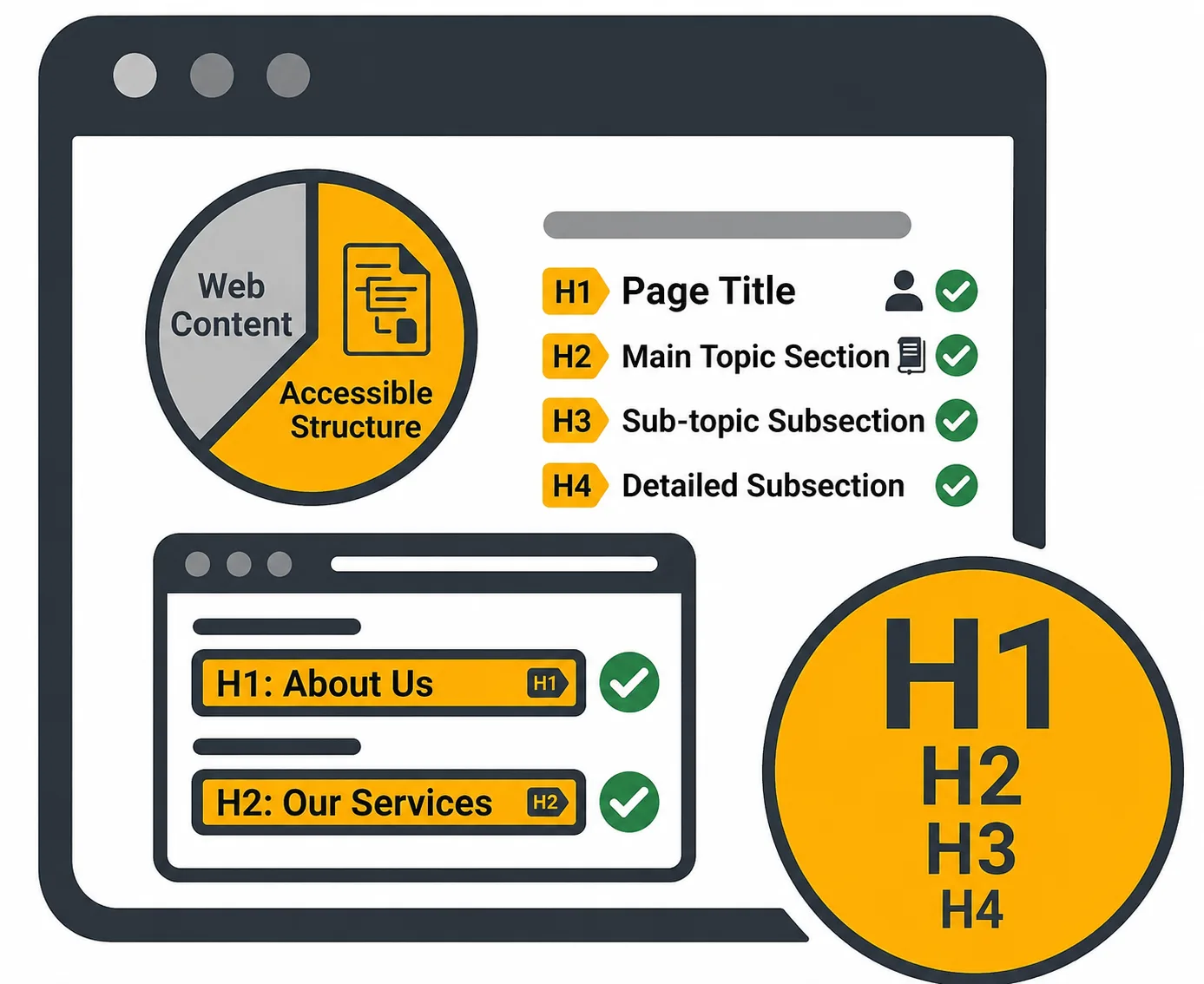
Meaningful Links
Meaningful link text clearly tells users where a hyperlink will take them or what they can expect to find when they select it. Every link should provide this context clearly and, when possible, allow users to understand its purpose without relying on surrounding text.
In this tutorial, you’ll learn how to create meaningful links and improve links that may not be accessible. We’ll cover both text-based links and images that function as links.
PDFs
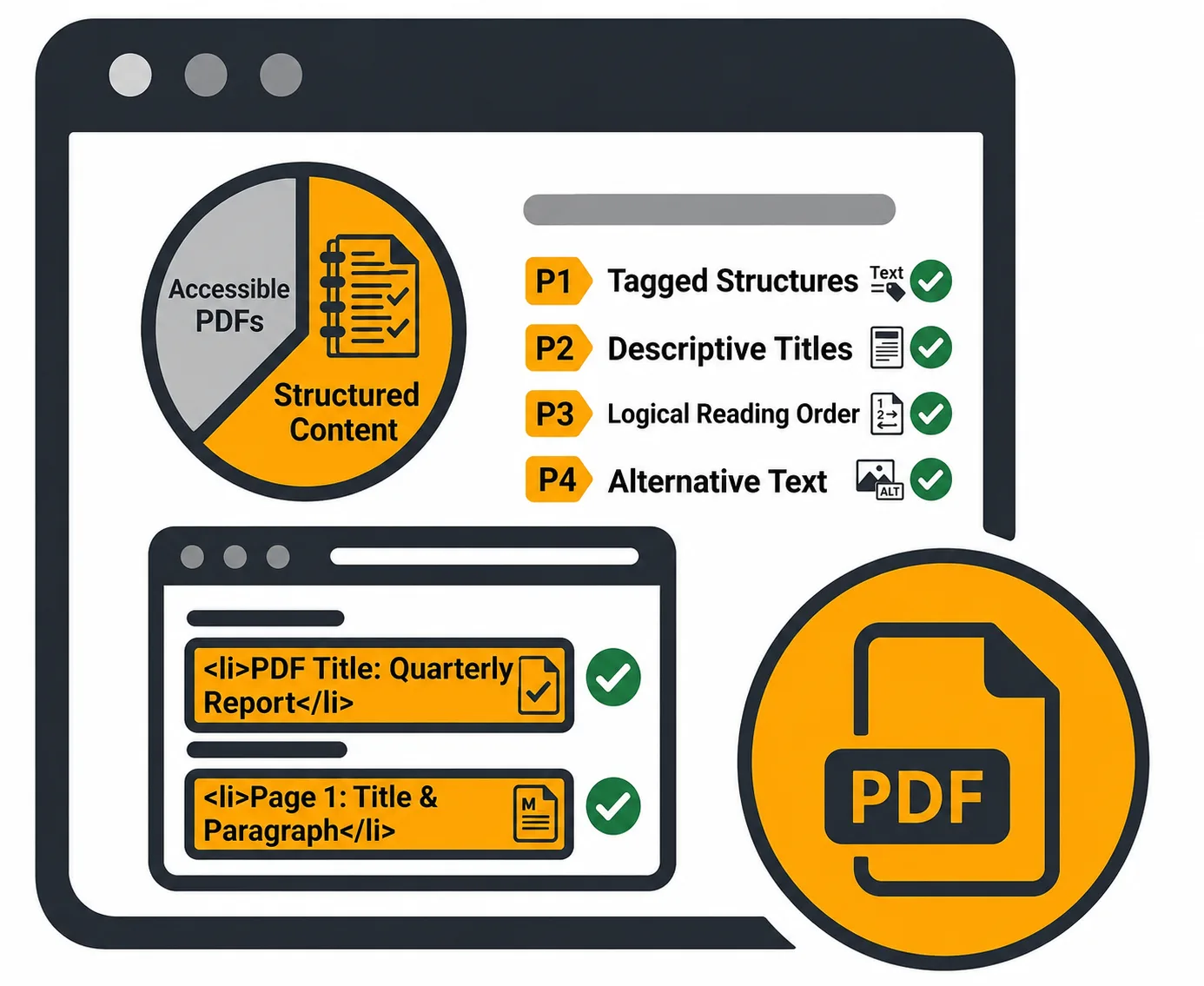
If you upload PDFs to your website and link to them from your content, it’s important to ensure they are accessible to people with disabilities and compatible with assistive technologies such as screen readers. Accessible documents also support compliance with legal standards, including the ADA and Section 508, helping ensure that everyone has equal access to information.
In this tutorial, we’ll show you where to find information about PDF accessibility and how to address common accessibility issues when they’re identified.
Alternative (Alt) Text
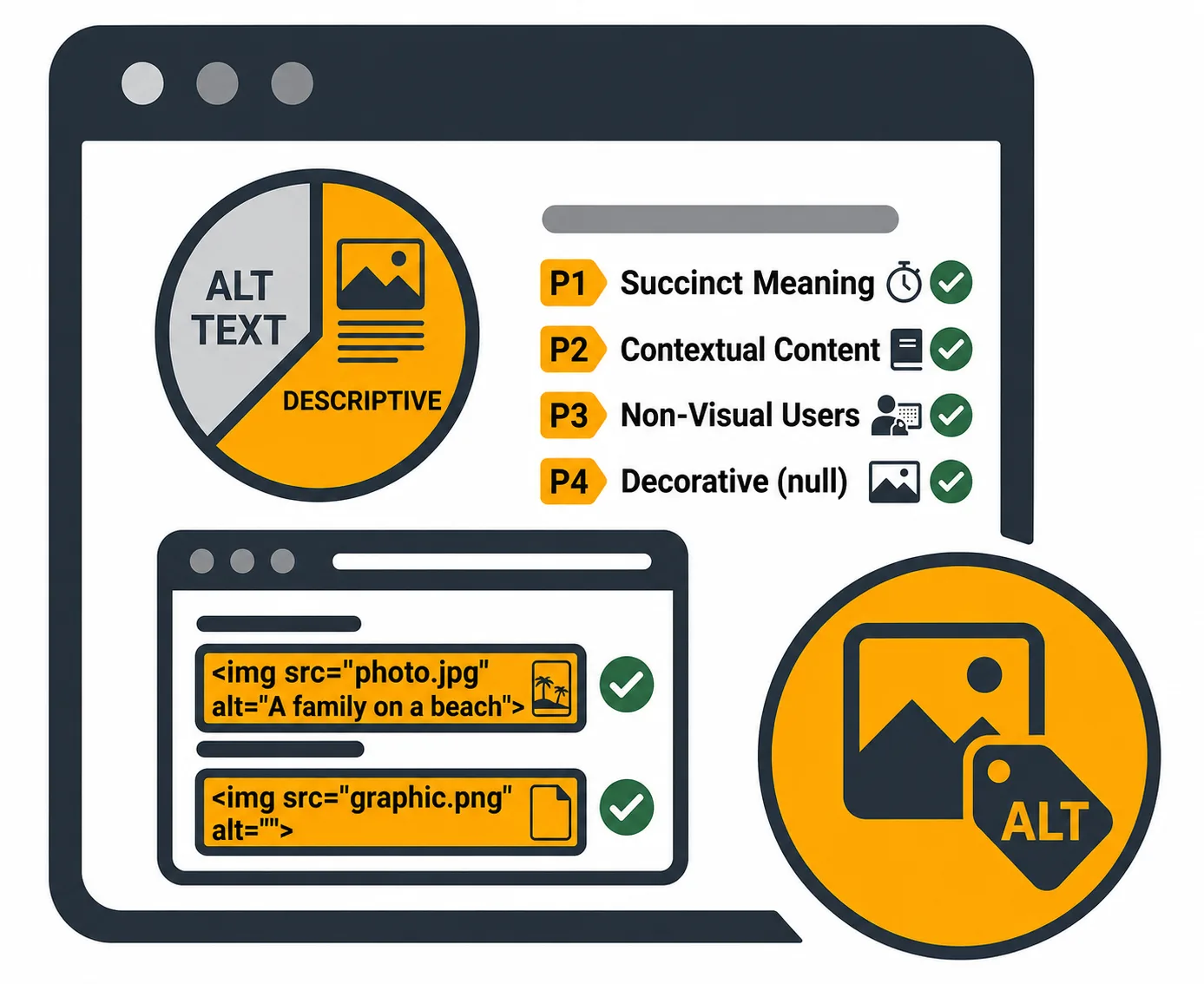
Alternative text (Alt Text) helps make images accessible by providing a text-based description that screen readers and other assistive technologies can interpret. When images support or convey information in your written content, meaningful Alt Text helps ensure that everyone can understand the content and context they provide.
In this tutorial, we’ll explore how to identify images on your site that are missing alt text and how to fix these issues.
Captions and Transcripts
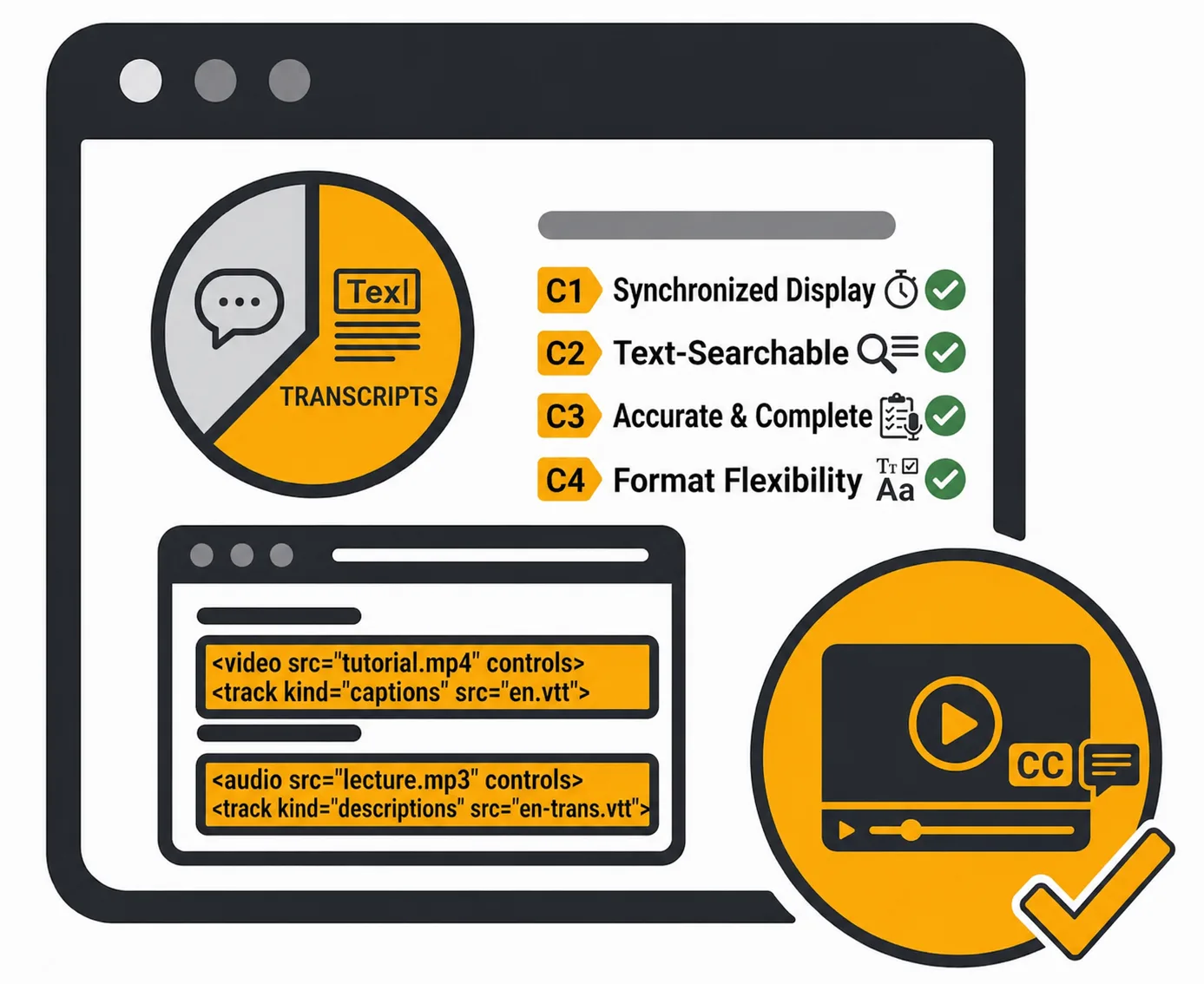
Captions and transcripts make audio and video content more accessible to people who are deaf or hard of hearing, as well as people with cognitive disabilities. Captions provide synchronized text for video, while transcripts provide a written version of audio-only content.
In this tutorial, you’ll learn how to work with captions and transcripts in Siteimprove to make multimedia content more accessible and support compliance with accessibility requirements.
Your Siteimprove Toolbox

Quality Assurance
Discover the steps you can take to create a more effective, engaging, and user-friendly website experience for everyone.

Analytics
A successful content strategy starts with understanding how your website is performing and what your audience is looking for.

Accessibility
Accessibility isn’t just about what happens behind the curtain—it’s about the experience everyone has in front of it.

SEO & Search
Understanding how visitors find your website and what they want is an essential step in developing an effective content strategy.
Online Presentations
Whether you’re planning to attend an upcoming digital strategy presentation or want to revisit a previous session, explore the topics we cover and resources we share.
Digital Strategy
A strong digital strategy serves as the foundation for your website and every aspect of your digital marketing and communications. Here’s what you need to know.
Want to Chat?
We’re here to support your digital strategy efforts. Reach out with questions or schedule a consultation to discuss your website strategy and explore opportunities for improvement.