
Getting Started (Accessibility)
Start building a more accessible website.
As you assess your site’s accessibility, remember that accessibility is an ongoing process—not a one-time task or checkbox. As technology, content, and user needs evolve, so must our efforts to create more inclusive digital experiences.
Every improvement you make helps build a more accessible environment for everyone.
Getting Started with Accessibility
In this tutorial, you’ll learn how to use the Accessibility module in Siteimprove and explore the tools it provides to help you identify and address accessibility issues. Whether you’re new to web accessibility or already familiar with accessibility best practices, this tutorial offers a practical introduction to the module’s key features and how they can support your efforts to create more accessible websites.
How can Siteimprove help?
The Accessibility features in Siteimprove help site editors identify areas of their website that can be improved for accessibility, monitor improvements over time, and help interested site editors dig deeper into the impact and logic of accessibility best practices.
Siteimprove’s Accessibility features help you identify quick improvements and determine strategies for longer-term progress. However, no automatic checker can find all types of errors or evaluate context and quality, so periodic manual review is also important for your sites. Siteimprove’s Accessibility features can provide an automated way to check for important facets of accessibility, helping you remove barriers for people with disabilities while improving the content of your website.
To learn more about manual testing, contact the IS Technology Accessibility Team at .
Getting Started: Accessibility Report
You can navigate to Siteimprove’s Accessibility features in several ways, but the most efficient way to start making positive changes is to choose the Accessibility Report from the Dashboard dropdown in Siteimprove.
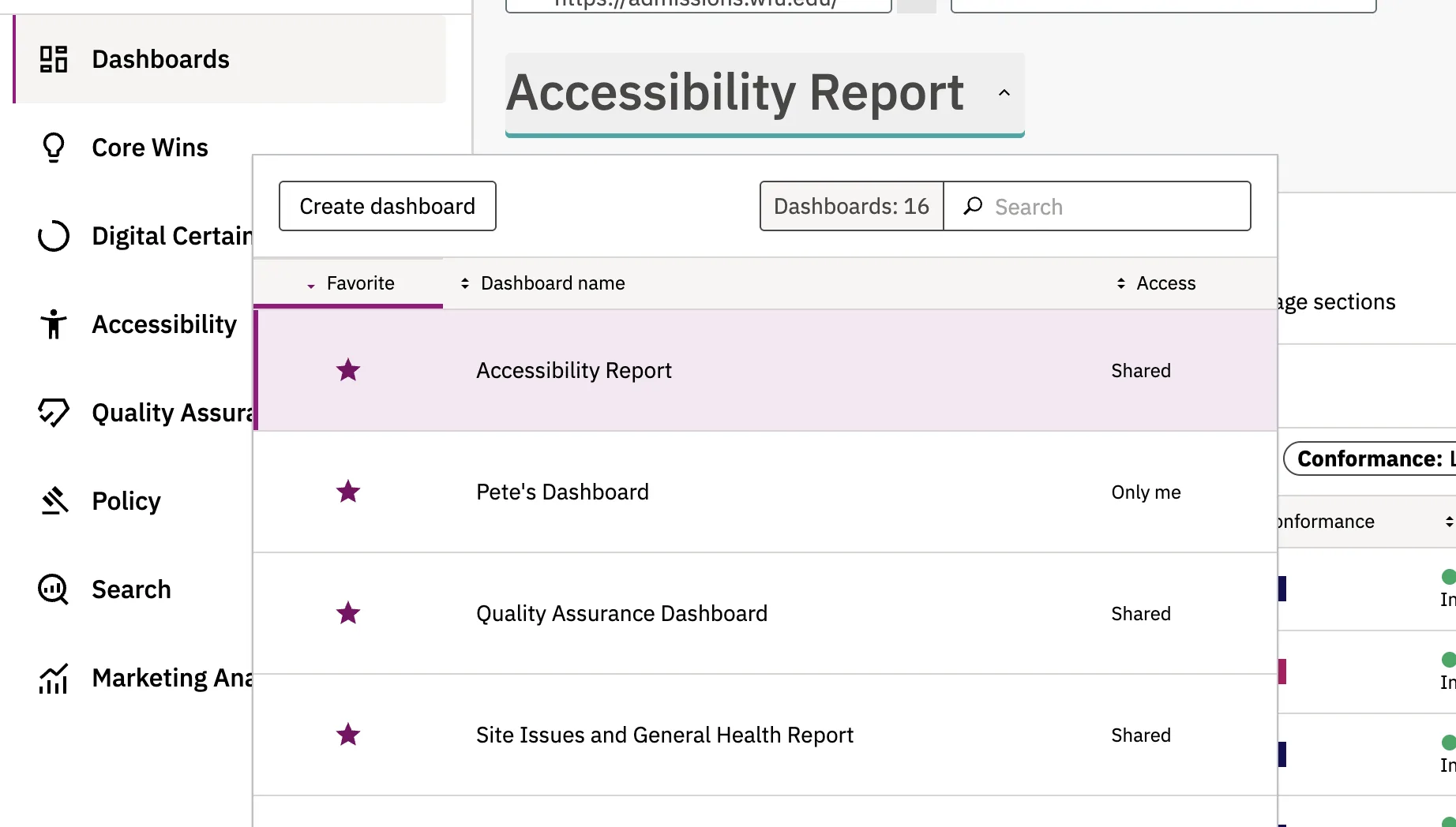
Note: You must be logged in and have the website you want to review selected in the box at the left above the dashboard selection dropdown. You can select the website before or after selecting the Accessibility Report.
Your Accessibility Report will have dashboard sections for Issues, Potential Issues, and Accessibility-Tested PDFs listing pages and elements within your site. Issues are identified accessibility challenges in your site, Potential Issues are items that need manual review to confirm if they are accessibility issues, and Accessibility-Tested PDFs are PDFs that are linked from your site and have been checked for accessible features.
Accessibility Report Filters
Before addressing the items in your Accessibility Report, it’s important to make sure the appropriate filters are applied. Filters help focus your report on accessibility issues that you, as a site editor, can address—making it easier to prioritize meaningful improvements and work efficiently. Without the appropriate filters, your report may include issues that are outside a site editor’s ability to resolve. More complex, site-wide accessibility considerations are being addressed through ongoing collaboration between UMC and Information Systems’ Technology Accessibility Team.
For the Issues and Potential Issues sections, make sure your report is filtered by the appropriate Conformance and Responsibility settings. Some filters may already be applied; if not, select the appropriate options from the Filters dropdown in each section. While filtering is recommended, you can also sort the Issues, Potential Issues, or Accessibility-Tested PDFs sections by any column—such as Conformance or Responsibility—by selecting the column heading to sort the results in ascending or descending order.
Set Filters For Issues
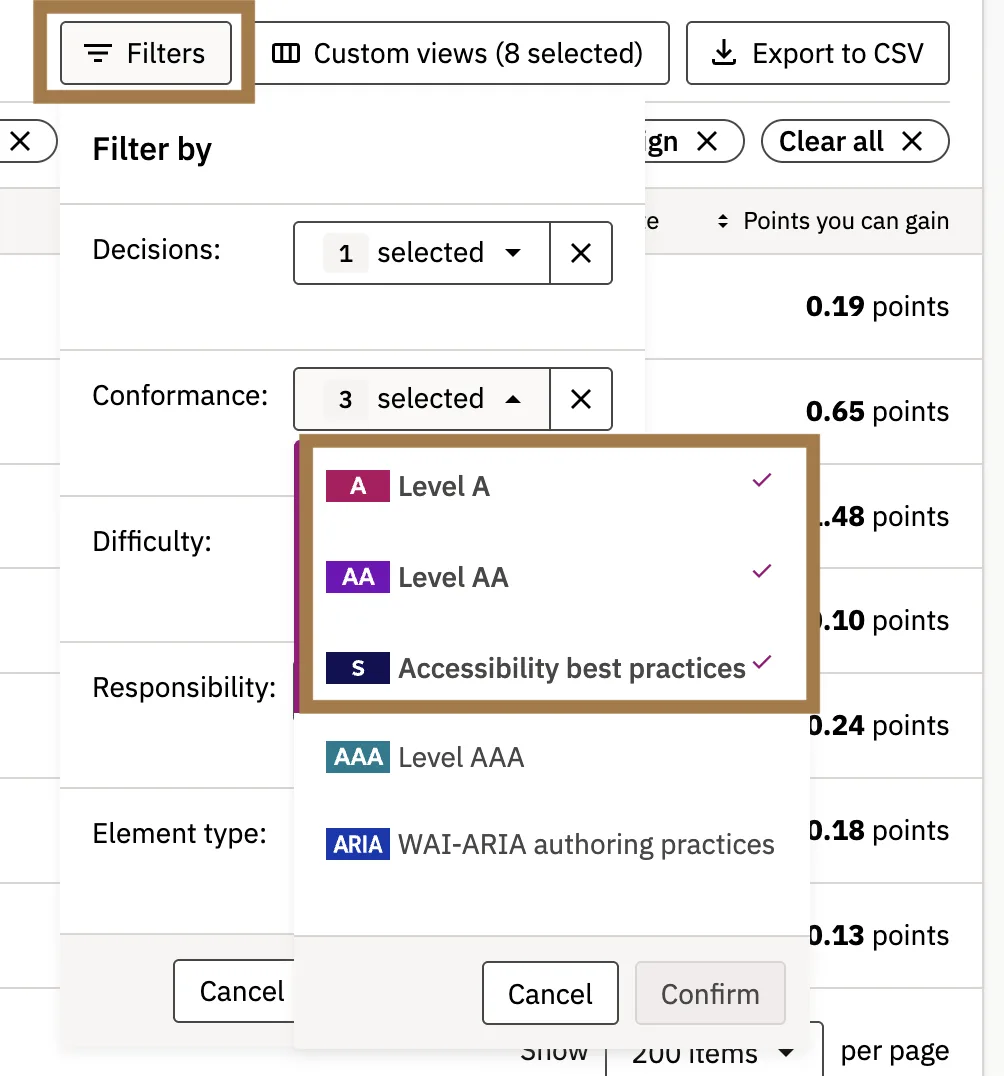
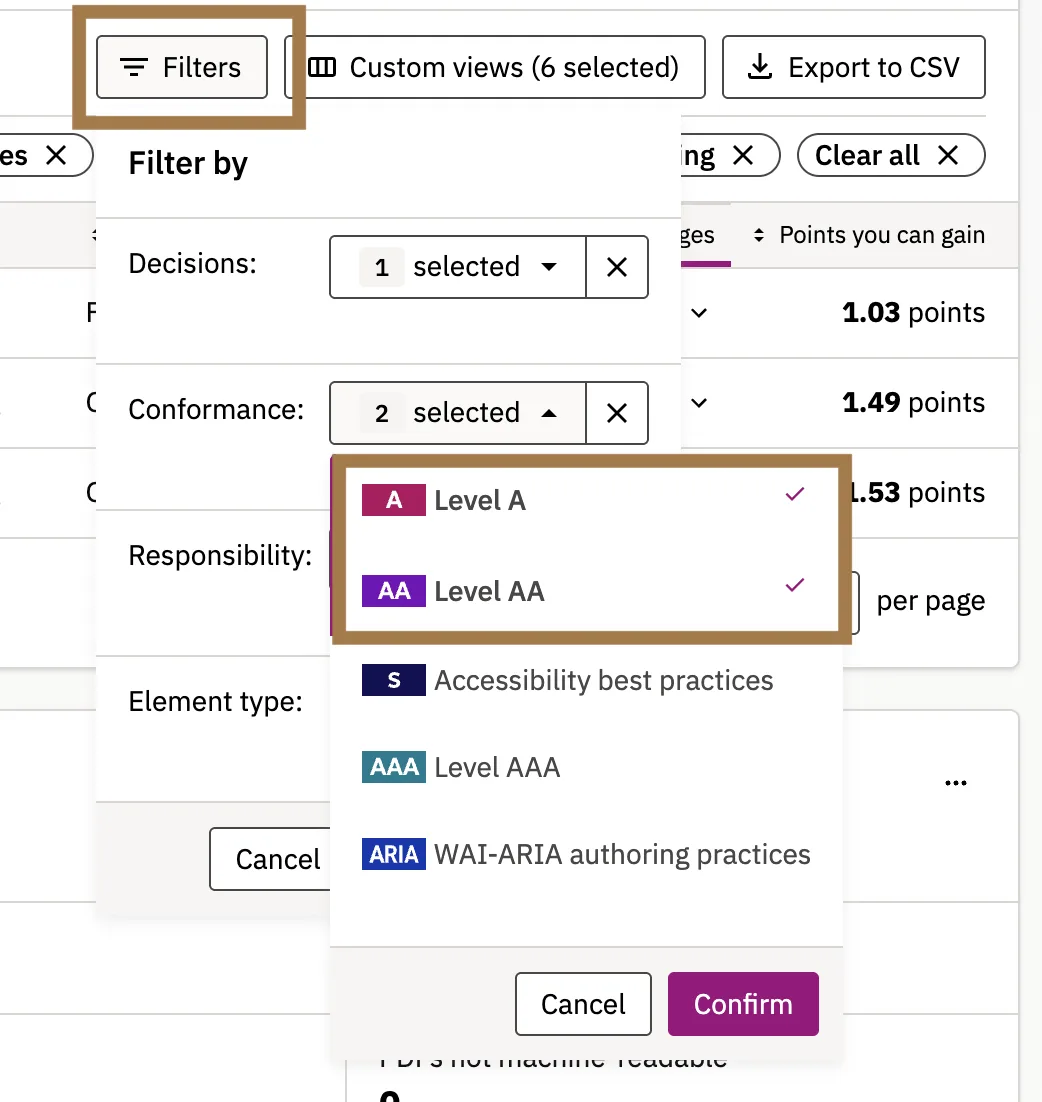
- For Issues, the Conformance section of the Filters should have only A, AA, and S selected. (For a brief introduction to the conformance standards that include levels A, AA and AAA, visit WCAG in the Technology Accessibility Glossary.)
- Click “Confirm” before moving to the next filter section.
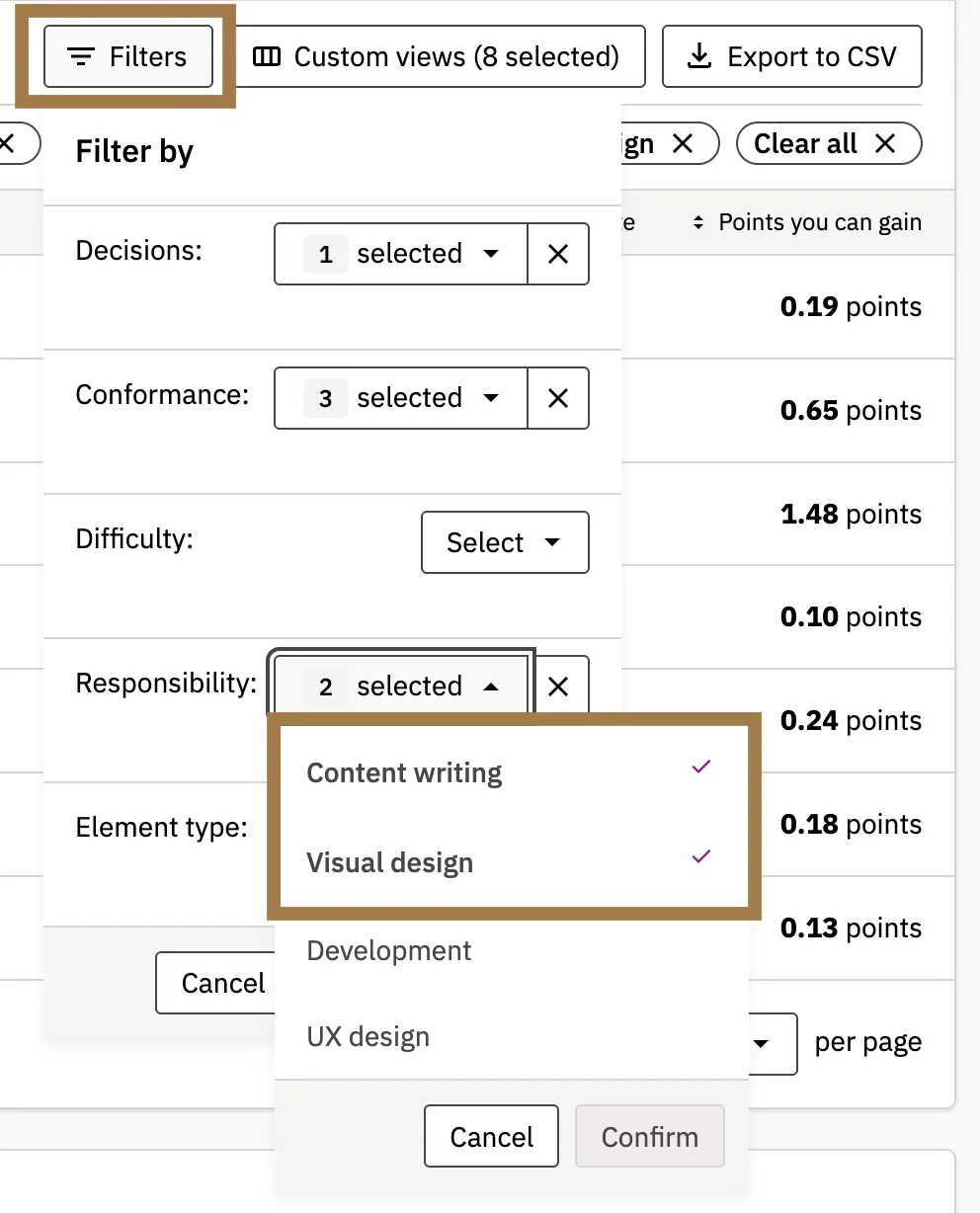
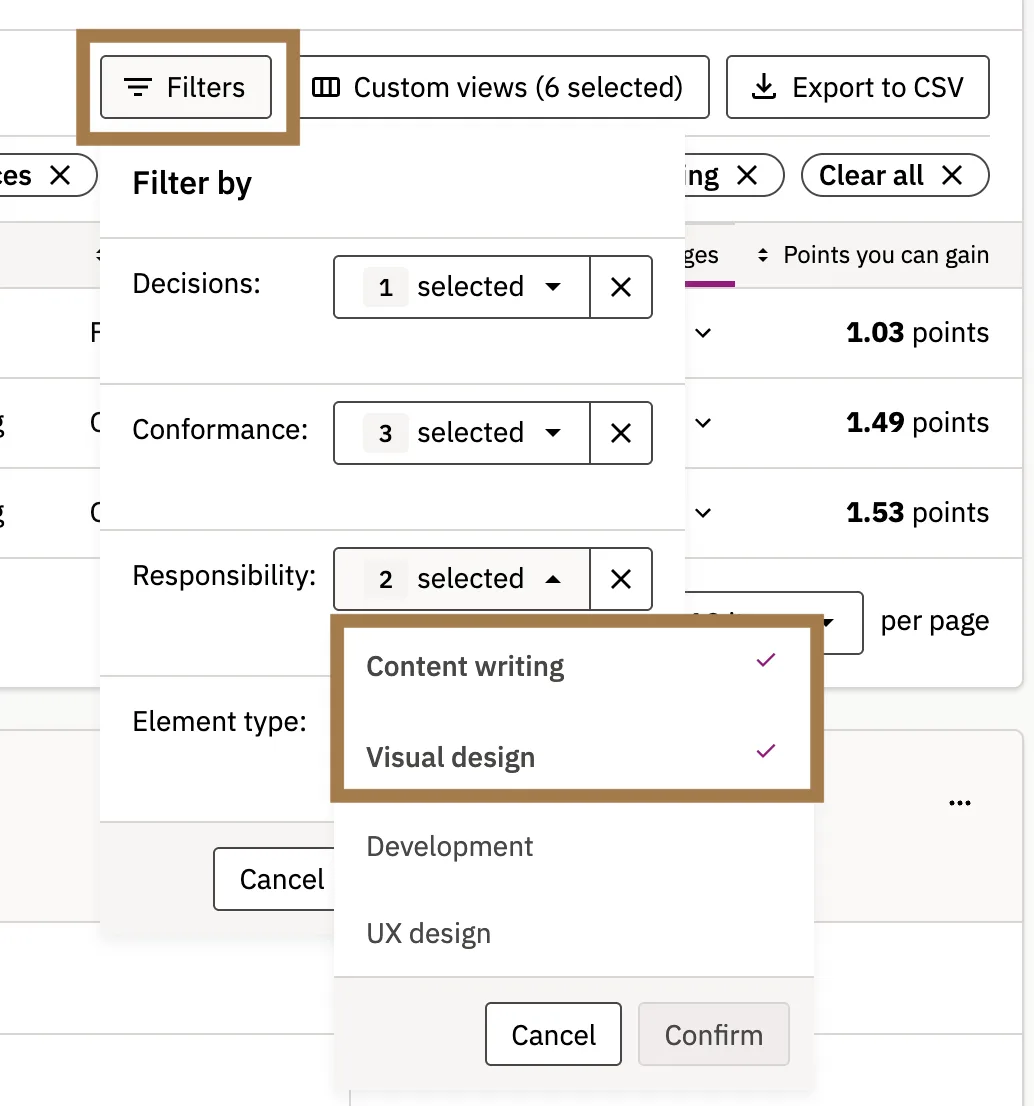
- The Responsibility section of the Filters should be set to show only Content Writing and Visual Design.
- Click “Confirm” before moving to the next step.
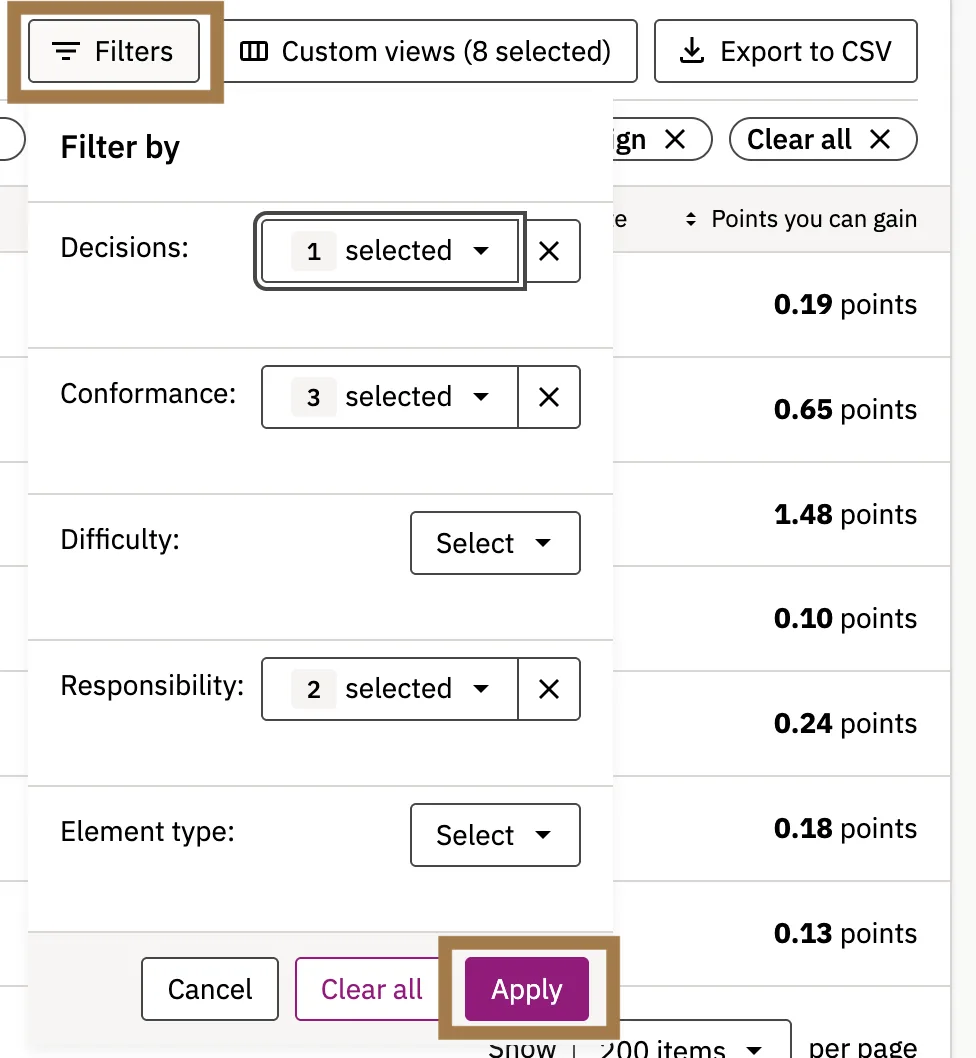
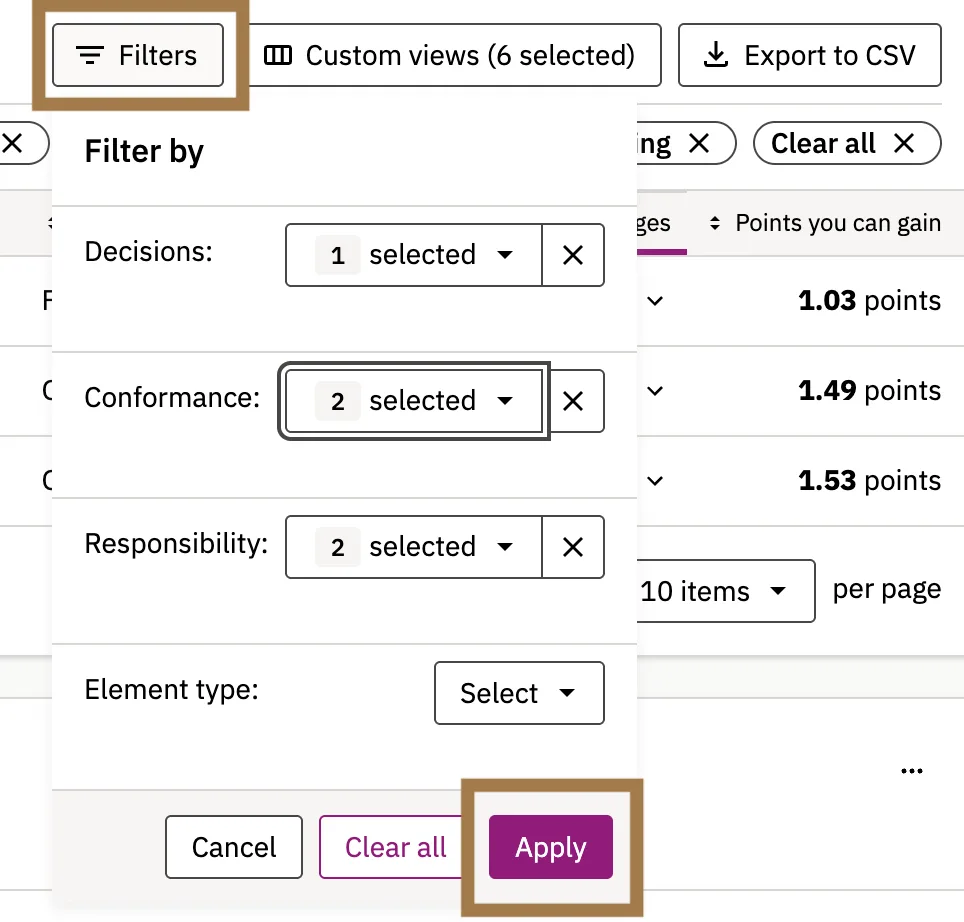
- Click “Apply” on the Filter dropdown to save your filter selections!
Screenshots of the Issues Conformance selections, Responsibility selections, and the Apply button, are below. Select the image to enlarge it.
Set Filters For Potential Issues
- For Potential Issues, the Conformance section of the Filters should have only A and AA selected.
- Click “Confirm” before moving to the next step.
- The Responsibility section of the Filters should be set to show only Content Writing and Visual Design.
- Click “Confirm” before moving to the next step.
- Click “Apply” on the Filter dropdown to save your filter selections.
Screenshots of the Potential Issues Conformance selections, Responsibility selections, and the Apply button, are below. Select the image to enlarge it.
Accessibility Report Details
Your Issues and Potential Issues sections will list information for each issue that can help you decide where to focus your efforts. These may include:
- Pages: How many pages the issue occurs on.
- Conformance: The Conformance guideline shares which set of guidelines applies. Web Content Accessibility Guidelines (WCAG) Level A are more frequent and significant barriers than AA, but the goal is to meet both. Si indicates a Siteimprove-recommended accessibility improvement. Level A should be prioritized when deciding where to start, with AA following.
- Difficulty: The degree of difficulty in addressing the issue. If you are new to the work or short on time, beginner or intermediate items might be faster to fix and get you started in accessibility improvements. (This appears only in the Issues section, not the Potential Issues section.)
- Responsibility: Which category of responsibility the issue falls into. When properly filtered, your reports should show only Visual design and content writing.
- Element type: The type of content in which the issue occurs, like a form or a link.
- Occurrences: The number of occurrences and pages where the issue appears (some problems can be fixed in one or two places and the change may populate to eliminate many occurrences).
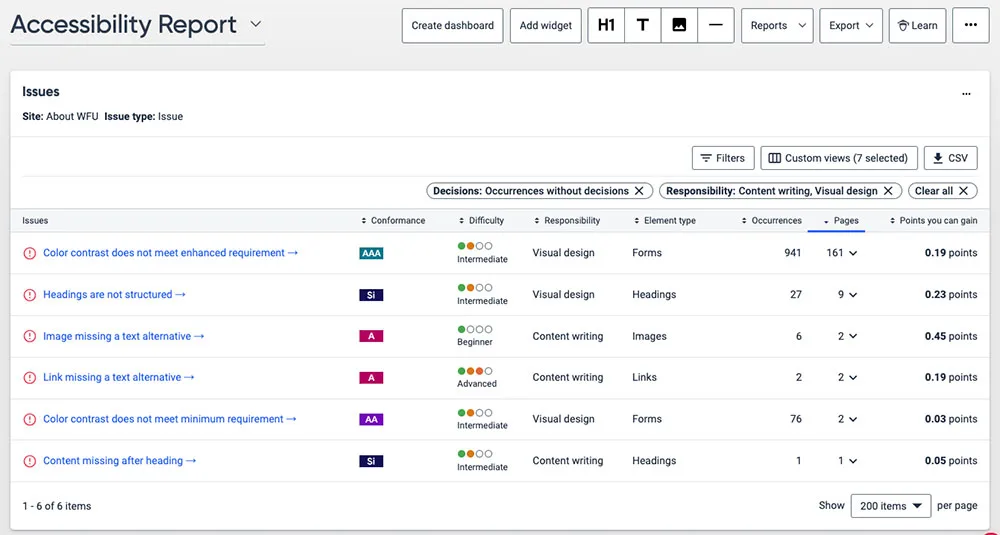
When deciding where to start your work to maximize use of your time, you may want to focus on challenges that occur frequently on many pages and those that have Level A (or AA) conformance.
Common Accessibility Challenges
Some of the more common accessibility challenges you can explore using Siteimprove are:
- Headings not properly structured
- Links missing appropriate and meaningful text
- PDF Accessibility
- Missing or Inadequate Alt (alternative) Text for images
- Captions and transcripts missing from videos and media
Note: Poor color contrast between text and backgrounds is a common digital accessibility issue. However, it is not typically a concern in the Siteimprove Accessibility Report because the standard combinations used in the UMC Gutenberg WordPress theme are designed to meet WCAG 2.1 AA contrast requirements.
We recommend using the standard UMC theme and, if you customize text or background colors, using a color contrast checker to ensure a minimum 4.5:1 contrast ratio. If you have questions about color contrast or accessibility, contact the IS Technology Accessibility Team.
Your Siteimprove Toolbox

Quality Assurance
Discover the steps you can take to create a more effective, engaging, and user-friendly website experience for everyone.

Analytics
A successful content strategy starts with understanding how your website is performing and what your audience is looking for.

Accessibility
Accessibility isn’t just about what happens behind the curtain—it’s about the experience everyone has in front of it.

SEO & Search
Understanding how visitors find your website and what they want is an essential step in developing an effective content strategy.
Online Presentations
Whether you’re planning to attend an upcoming digital strategy presentation or want to revisit a previous session, explore the topics we cover and resources we share.
Digital Strategy
A strong digital strategy serves as the foundation for your website and every aspect of your digital marketing and communications. Here’s what you need to know.
Want to Chat?
We’re here to support your digital strategy efforts. Reach out with questions or schedule a consultation to discuss your website strategy and explore opportunities for improvement.