
Accessibility
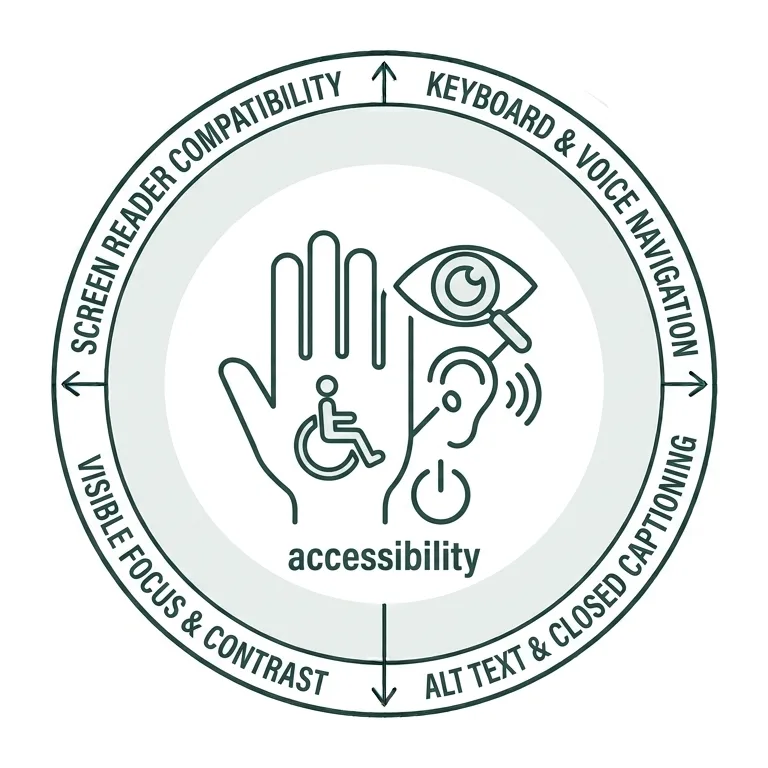
Accessibility Benefits Everyone
Great digital strategy and user experience require accessibility. Everyone benefits from accessible design, and up to a quarter of our audience may have disabilities and rely on accessible content.
In this section, we share how essential web habits (clear headings and lists, captions, clear text communication) protect that 25% of our reach while enriching the experience for all. As a bonus, these same habits directly enhance your SEO, QA, and AI readiness.
Accessibility is Essential to Digital Strategy
This slide deck outlines the essential reasons and goals for accessibility practices in digital strategy.
Clear Structure
Providing a clear and concise structure for your website content is one of the most effective ways to help people quickly find, understand, and act on the information they need. Well-organized content, meaningful headings, and concise language create a more intuitive experience that reduces frustration, improves comprehension, and makes it easier for users to navigate your site with confidence.
A strong content structure benefits everyone. It supports people who scan for information, those accessing your site on mobile devices, users with varying literacy levels, and individuals who rely on assistive technologies. When content is easy to follow, it becomes more accessible, more usable, and ultimately more effective.
Clear and concise content structure should be the standard, not the exception. Below are several best practices you can implement—or continue following—to ensure your content delivers the greatest possible impact for every member of your audience.
Headings
Headings are essential to help visitors navigate the content on your page. Think of them like a table of contents for information. Not only do they help visitors understand how content on your page is organized, but they provide a quick way for them to scan the page to look for specific topics and details.
In our WordPress environment, there are six heading levels that create a logical hierarchy for your content. Using headings correctly makes your pages easier to scan, improves accessibility, and helps visitors quickly understand how information is organized.
Heading 1 (H1)
Reserved exclusively for the page title. Do not use additional H1 headings within the page content.
Heading 2 (H2)
Used to organize the primary sections or main topics of the page. Most content should be grouped under H2 headings.
Heading 3 (H3)
Used for subsections that expand on or support the topic introduced by the preceding H2 heading.
Heading 4 (H4)
Used for additional details or subtopics related to the preceding H3 heading.
Heading 5 (H5)
Used only when further organization is needed beneath an H4 heading.
Heading 6 (H6)
Reserved for the most detailed level of content and should be used sparingly, only when additional hierarchy is necessary beneath an H5 heading.
Always use headings in sequential order (H2 → H3 → H3 → H4, and so on) with proper nesting of topics and subtopics, and avoid skipping heading levels. This creates a logical structure that improves readability, supports assistive technologies, and makes your content easier for everyone to navigate.
Additional information on how to use Headings, the impact they have on digital accessibility, and how to find any issues on your website can be found in the Siteimprove Headings tutorial.
Lists
Ordered and unordered lists are one of the simplest ways to make your content easier to read and understand. Rather than asking visitors to search through long paragraphs for key information, lists break content into concise, digestible points that people can scan quickly. This is especially valuable for users who are short on time, browsing on mobile devices, or looking for a specific answer.
Lists also improve accessibility by providing a clear, predictable structure that is easier for assistive technologies, such as screen readers, to interpret. When information is organized into a list, users can more easily understand the relationship between items and navigate through the content efficiently.
Example:
Unordered List
- Information or details related to the section topic
- Lists are easier to scan and understand than lengthy sentences buried within large paragraphs
- This helps your visitors find what they’re looking for faster
Ordered List
- The first item, or step, in a numeric list or information that follows a specific order
- The second item or step in order in which something takes place
- The third item or step in a process
In addition to improving the user experience, well-structured lists can make your content easier for search engines and AI-powered search tools to interpret. Generative AI platforms often look for clearly organized information when summarizing content or answering questions. Presenting key facts, steps, requirements, or recommendations in a list makes them easier to identify and extract, increasing the likelihood that your content will be referenced or cited in AI-generated responses.
Whenever you have a series of related items, steps, requirements, features, benefits, or key takeaways, consider using a list instead of a paragraph. It makes your content more readable, more accessible, and more discoverable.
Text Alternatives
Alt text should be included for all meaningful images on your website. While not visible to most users, it is essential for accessibility because screen readers use it to describe images to people who are blind or have low vision.
Alt text should not describe every visual detail. Instead, it should convey the image’s purpose or the key information it adds to the page. A helpful question to ask is: “What would someone miss if they couldn’t see this image?”
Images are often included to reinforce a message, illustrate a concept, or support navigation. Alt text should reflect that context so screen reader users receive the same understanding as sighted users.
Example:

OK Alt Text
A WFU student with their family sitting on a swing
Good Alt Text
A WFU upperclass student with their family pose for a photo during Move-In Day
Bad Alt Text
People posing for a photo
For example, alt text for an image of students moving into campus with help from their families (as shown above) may be written as “A WFU upperclass student with their family pose for a photo during Move-In Day”.
If an image is purely decorative and adds no meaningful information, it should be marked as decorative so assistive technologies can skip it.
Clear, purposeful alt text helps ensure all users can understand and engage with your content.
Captions and Transcripts
Captions and transcripts make audio and video content accessible to a wider audience. When creating captions and transcripts, keep the following in mind:
- Videos should include accurate, synchronized captions
- Audio-only content should provide a transcript
These features are essential for people who are deaf or hard of hearing, but they also benefit many others, including people with cognitive disabilities, those who are learning a new language, and anyone viewing or listening in environments where audio isn’t available or practical.
Providing captions and transcripts helps ensure everyone can access and understand your content, regardless of how or where they consume it.
Simple Writing
Good content isn’t just about what you say—it’s also about how you say it. The way you write has a direct impact on how easily people can find, understand, and act on your information. Writing clearly benefits everyone, including people using assistive technologies, visitors who are scanning for answers, and users accessing your site on mobile devices.
As you create or revise content, keep these best practices in mind:
- Write with clarity. Make your main message easy to identify and understand. Visitors should be able to quickly determine whether a page contains the information they’re looking for.
- Keep sentences and paragraphs short. Long blocks of text are difficult to scan and can discourage visitors from reading. Breaking content into shorter, more focused sections improves readability and comprehension.
- Use simple, familiar language. Choose words that are easy to understand whenever possible. While technical terms may sometimes be necessary, avoid unnecessarily complex or polysyllabic words that could make your content harder to read.
- Limit acronyms and jargon. Don’t assume your audience is familiar with internal terminology or Wake Forest campus-specific language. When an acronym or specialized term is necessary, spell it out the first time it appears or provide enough context for readers to understand its meaning.
- Organize content with headings and lists. Use descriptive headings, bullet lists, and numbered lists to break up information into manageable sections. A well-structured page is easier to scan, easier to navigate, and easier for both people and assistive technologies to understand.
Writing with clarity isn’t just an accessibility best practice—it’s a fundamental part of creating an effective website. Clear, concise, and well-organized content helps every visitor find the information they need more quickly and with greater confidence.
If you want to learn more about best-practices with writing for the web and readability, check out our Writing for the Web page.
Technology Accessibility at Wake
We’ve just scratched the surface on how you can make what you do with technology more accessible for everyone. If you’d like to learn more on digital accessibility, beyond how it make your website compliant and easier to use, visit our Technology Accessibility at Wake website for additional resources, tutorials, campus accessibility events, and more.
Your Digital Strategy Toolbox

Content
A well-defined web content strategy drives user experience, content visibility, and overall website performance.

Analytics
Analytics help you uncover insights, identify trends, and guide improvements for your website content strategy.

GenAI & SEO
How people discover information has changed—and continues to evolve. Here’s why that matters and how to approach it.

Accessibility
An effective website is designed not only for its intended audience, but to ensure everyone can access its content.
Online Presentations
Whether you’re interested in attending an upcoming digital strategy presentation or want to revisit a previous one, explore the topics we cover and resources we share.
Glossary of Terms
Digital strategy involves a lot of terminology that can feel overwhelming. We’re here to help clarify some of the most common terms and concepts you’ll encounter.
Want to Chat?
We’re here to support your digital strategy efforts. Reach out with questions or schedule a consultation with us to discuss your website strategy.