
Meaningful Links
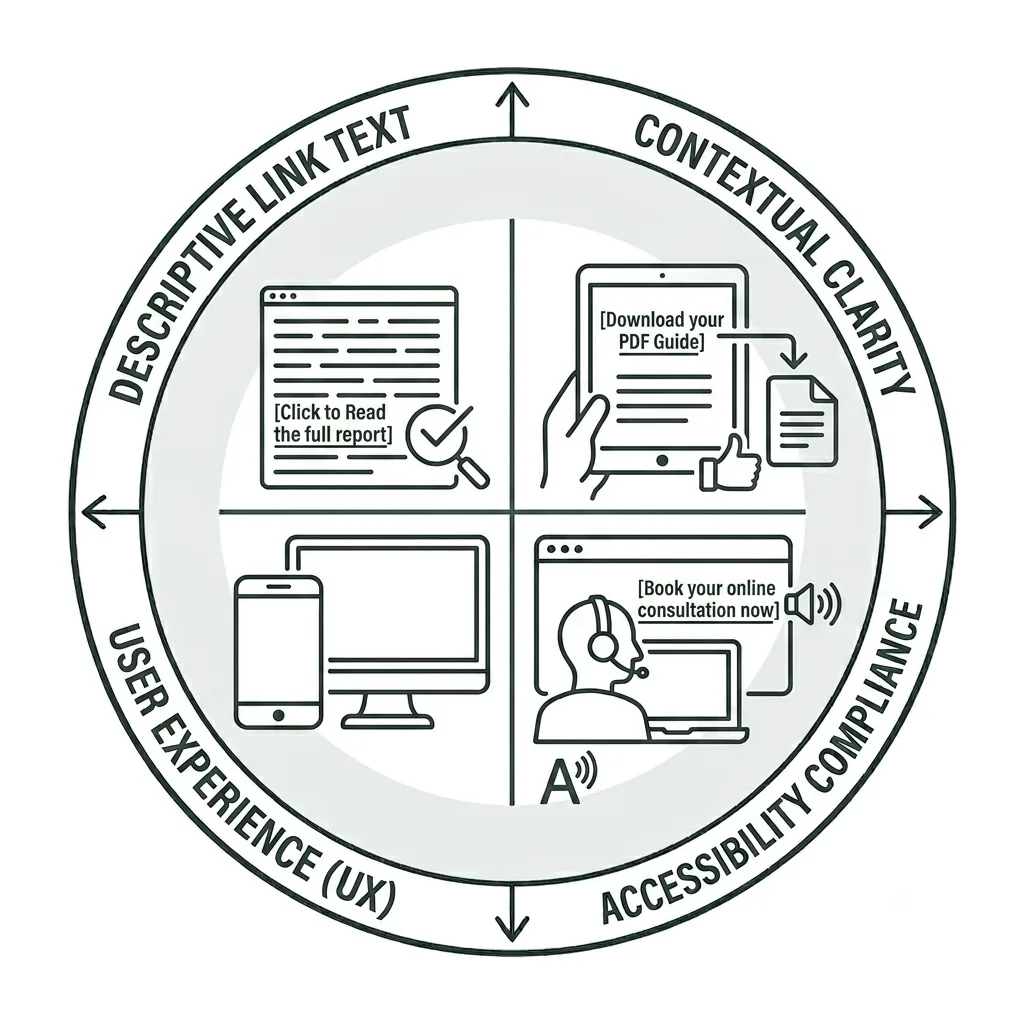
Creating Meaningful Link Text
Meaningful link text helps users understand where a link leads, even when it is read out of context. This is especially important for screen reader users, who may navigate a page by moving from link to link or generating a list of all available links.
Clear, descriptive links also contribute to a better overall user experience and can improve engagement. When users understand where a link will take them, they are more likely to interact with it and continue toward completing an important task or goal.
Meaningful Link Text Video Tutorial
In this tutorial, we’ll address why link text should clearly describe the link’s purpose or destination without relying on surrounding context. Since screen readers already identify links, avoid phrases like “click here” or “link to.” Instead, use meaningful text that helps users understand where the link goes or what it does.
What are Meaningful Links?
Meaningful link text clearly tells users where a hyperlink will take them or what they can expect to find when they select it. Every link should be descriptive enough to stand on its own, making sense even when read out of context. Link text should also be unique within a page so users—including those using assistive technologies—can quickly scan content and confidently identify the link they need.
Avoid generic phrases such as “click here” or using a full URL as the link text, as they provide little context. Instead, use descriptive text that clearly identifies the destination or purpose of the link. For example, Wake Accessibility Guide is far more informative than “Click here” because it tells users exactly what to expect before they select the link.
For an image that serves as a link, the alt (alternative) text for the image should be a meaningful description of where the link will take a user rather than a description of the image itself.
Creating meaningful link text is a simple but impactful accessibility practice, and once learned, it will become a nearly effortless habit. For bonus efficiency, consider reviewing the link text and making it meaningful while you review your broken links during QA.
Fixing Meaningful Link Issues
Use the step-by-step guide below to learn how to review and fix meaningful links on your site. Please note that this guide is intended as a supplemental resource and is not a substitute for formal Siteimprove training offered by UMC and Information Systems.
If you have access to Siteimprove but have not yet completed formal training, please schedule a training session. We’ll help you become familiar with the platform and ensure you have the knowledge and resources needed to use it effectively.
Accessibility Report Dashboard
Once you’re logged into Siteimprove, choose the site you want to work on and then select the Accessibility Report Dashboard from the dropdown menu.
Any accessibility issues that appear on your site will appear either within the Issues or Potential Issues reports. (PDFs are listed separately along with their accessibility information.)
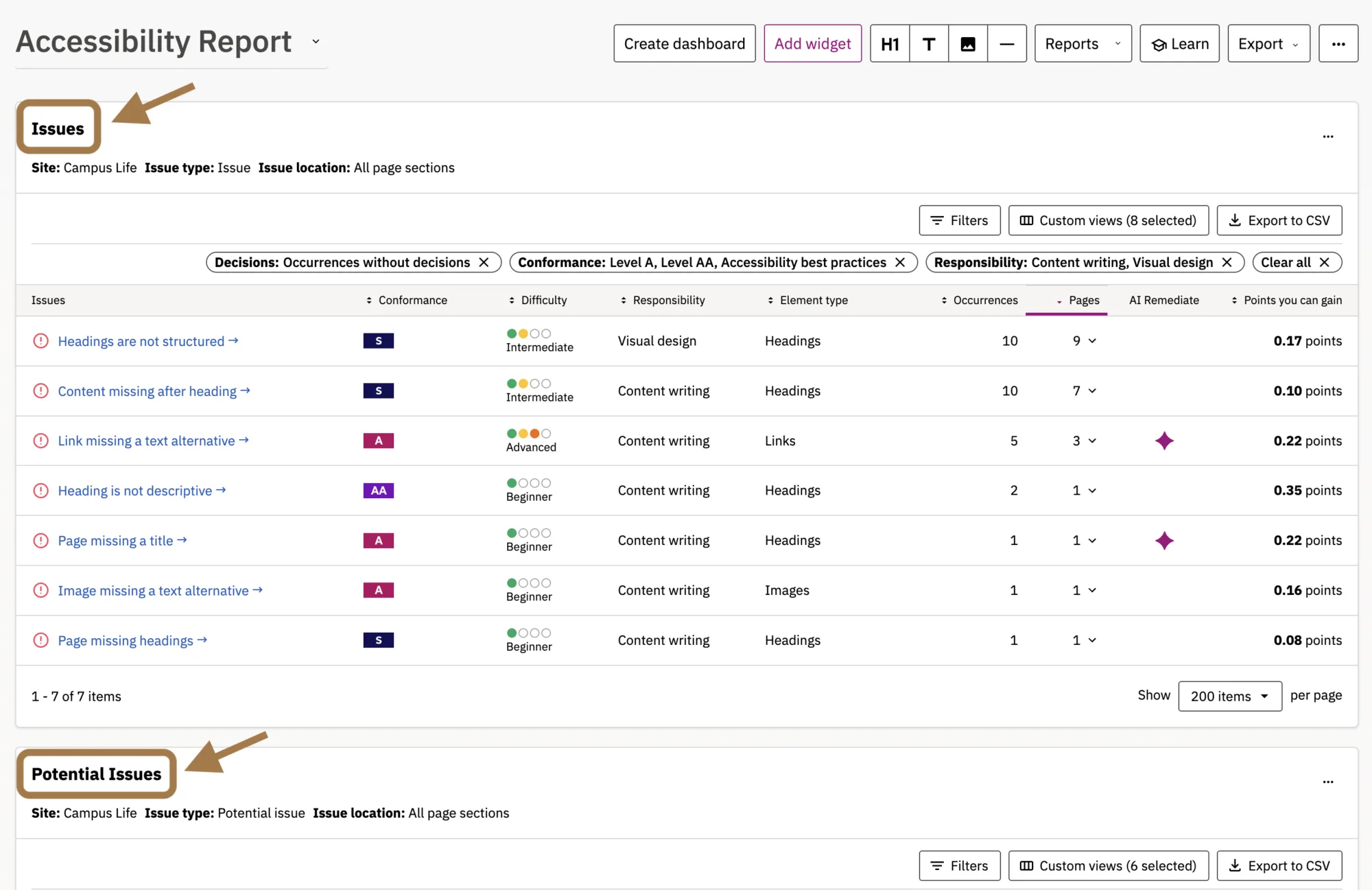

Identifying Meaningful Link Issues
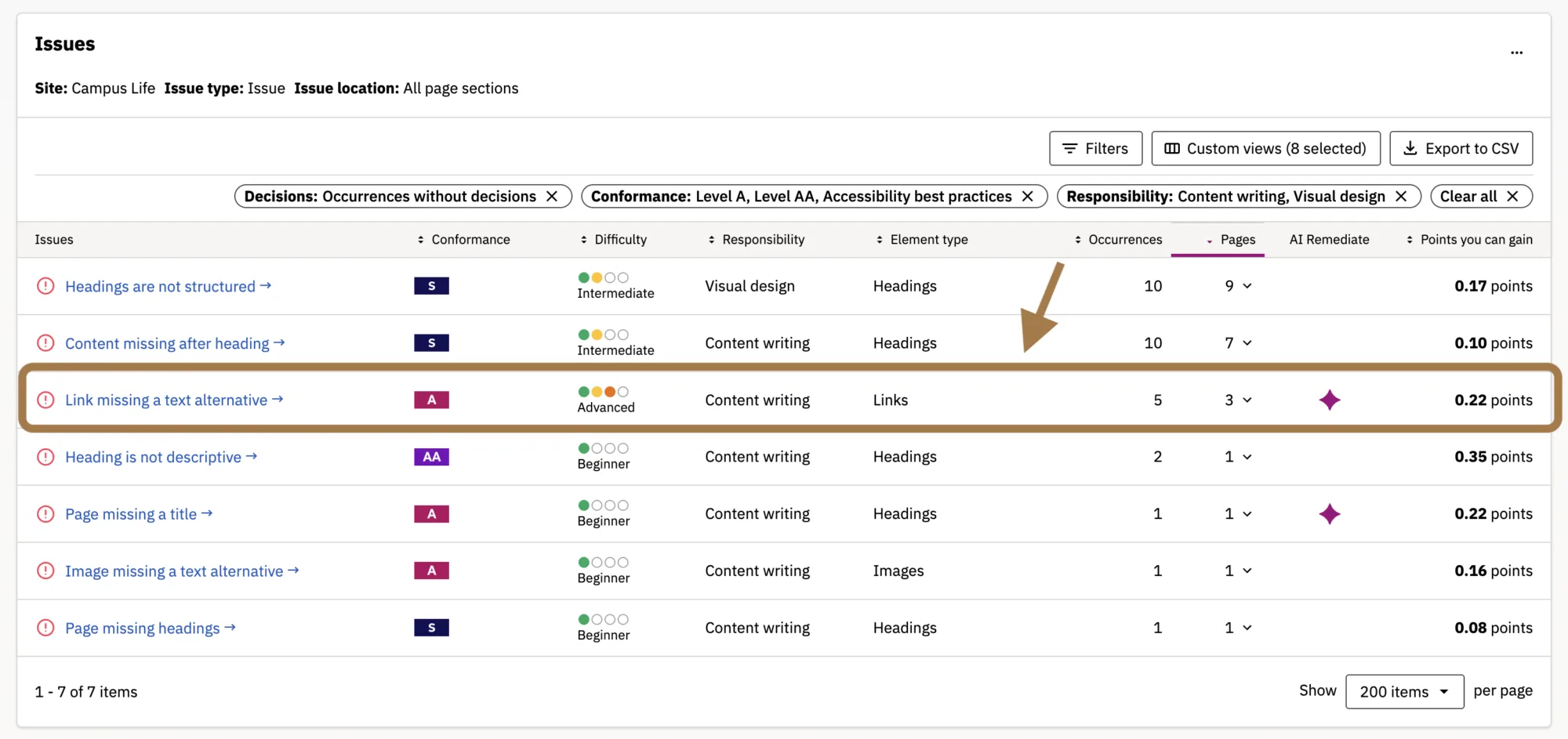
Select a particular issue involving links that you want to address. You may see one or more of the following issues appear in your dashboard:
- Link missing a text alternative
- Links in the same context with the same text alternative
- Links on the same page with the same text alternative
- Do these links (in the same context) go to the same page? (Potential Issues)
In this tutorial we’re going to explore “Link missing a text alternative” and begin working on fixing these issues.
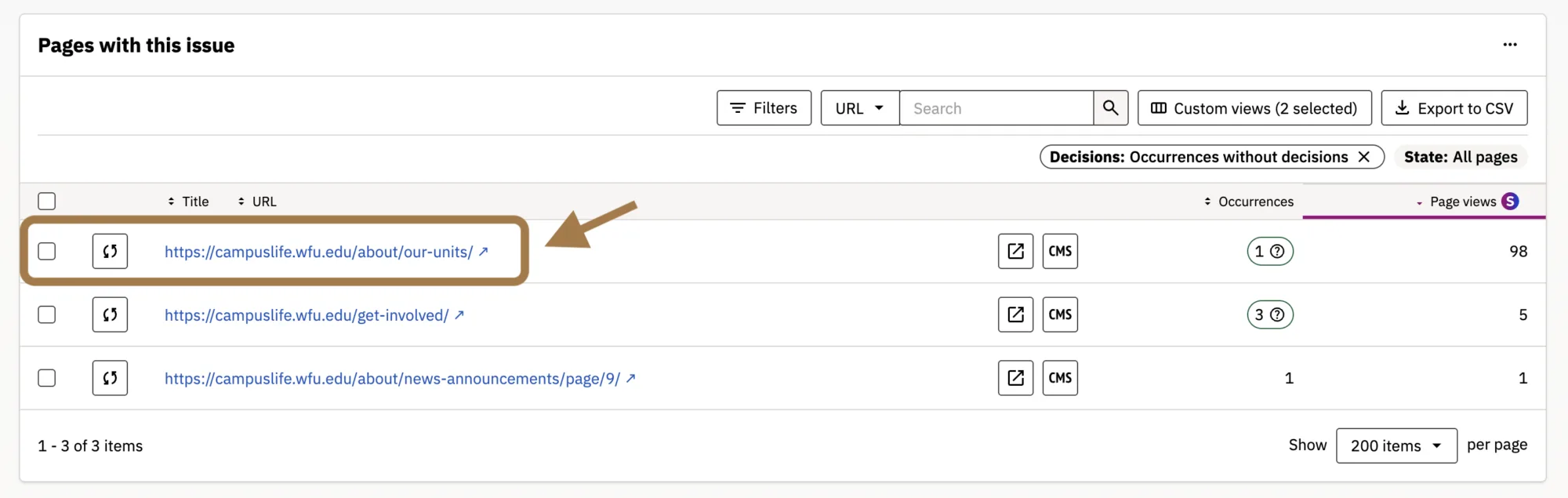
Once selected, you will be redirected to a screen that shows you the URL of every page on your site that has been flagged with missing a text alternative for a link.
Affected Pages
Here you’ll see all pages on your site that have been flagged for not having meaningful link text.
Select a page to identify where a meaningful link text omission occurs and determine the steps needed to fix it.
Fixing the Issue
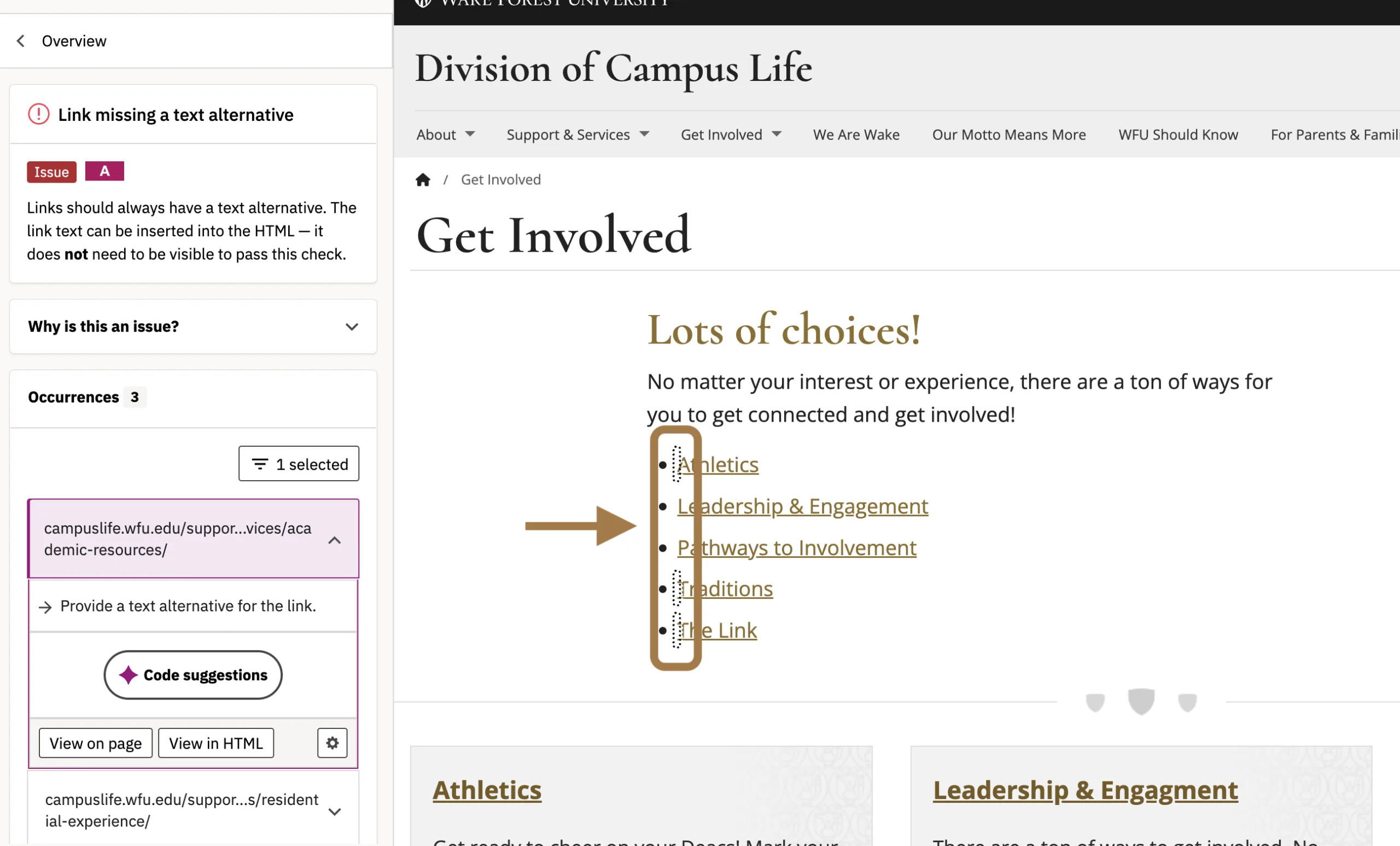
A new tab will open and you’ll be redirected to a screen that loads the page in the Siteimprove interface with the link in question highlighted with a dotted box. The report offers you information on why this is an issue and examples of good code.
The page offers you information on why this is an issue and examples of good code.
To begin the link remediation process, click on the CMS button at the top of the page.
Note: You’ll need to be logged into your WordPress site for this to work.

This will redirect you to the backend of the page in WordPress. From here you can add text and save the page once you’re done.
Click Update on your webpage before exiting. When you’ve made the change, you can close the browser tab.
To fix additional heading structure challenges, go back to the Accessibility Report and select the next issue or to the page list to select the next URL for the same issue.
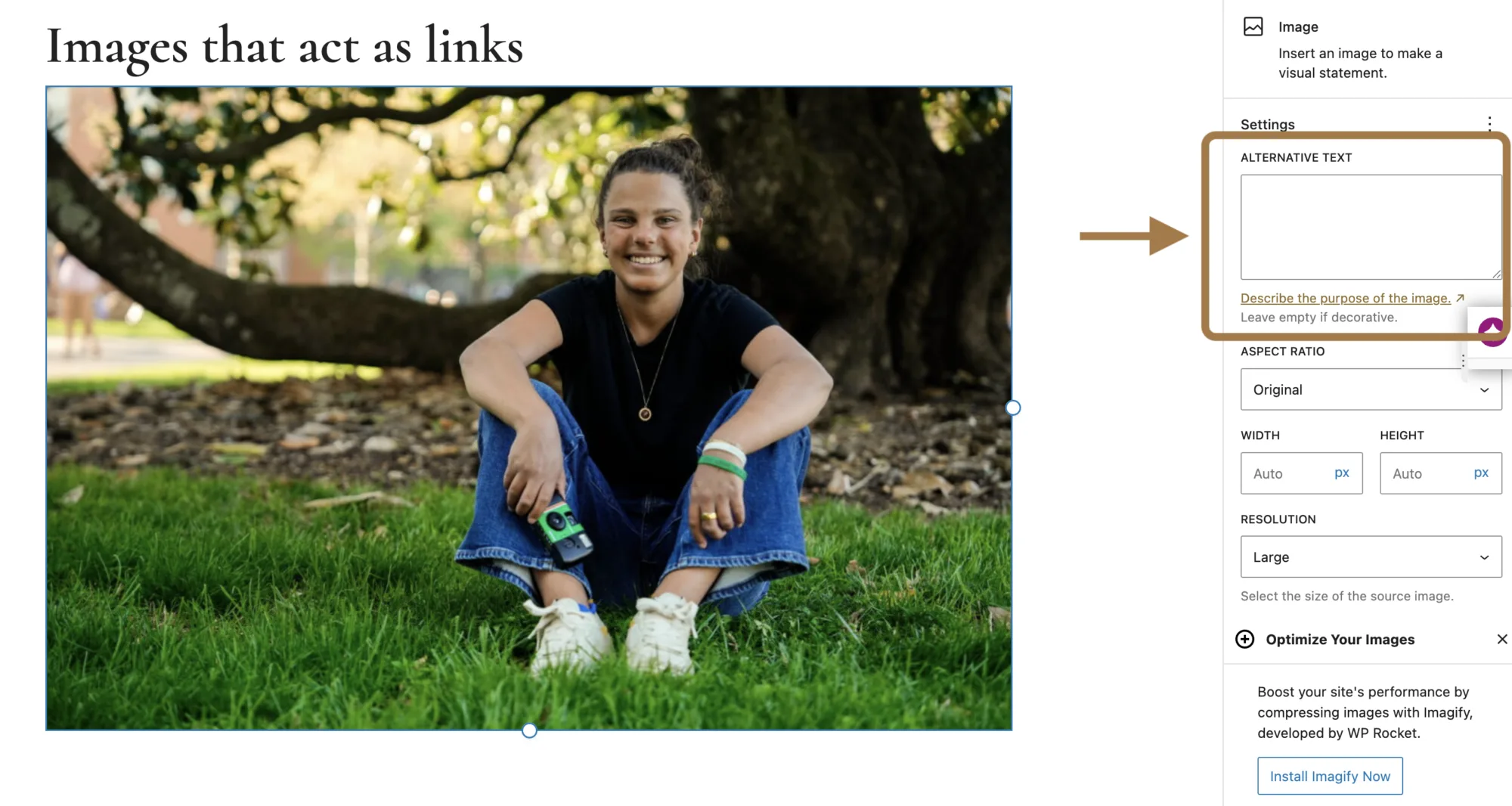
What about images that act as links?
For an image that acts as a link, the alt text field should be populated with the purpose or meaning of the destination of the link (not the URL or the image’s visual description). Enter that link purpose into the Alternative (Alt) Text field.
You’ll need to address this issue in WordPress. Log in to your site and open the page in the WordPress editor to make the necessary correction.
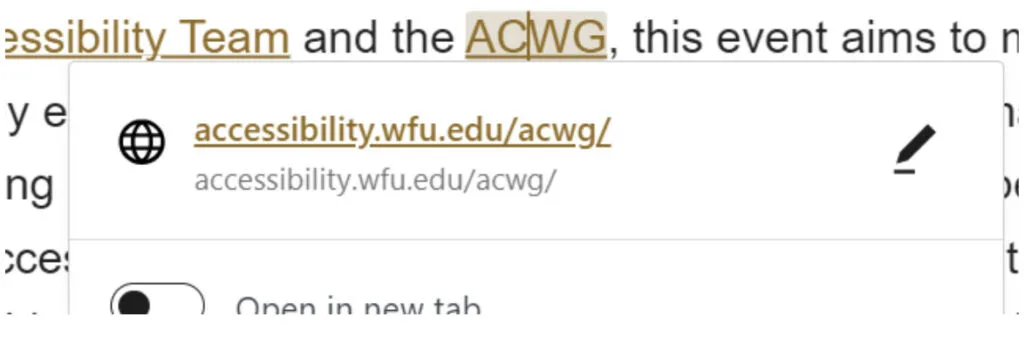
Improving link text for text-based links.
Whether in your Siteimprove review or in other manual reviews, you may encounter links that are not meaningful. This might include links that are just URLs, unclear link text, and, most often, links that are not unique on a page such as repeated “Click Here” or “Read More.” When you find these, you can quickly and easily make them more accessible.
For a text-based link that needs improved link text, click on the text that is linked on your page so that the whole linked area of text is highlighted, then edit the highlighted link text by simply typing your corrections.
Before
After

Click Update on your webpage before exiting. When you’ve made the change, you can close the browser tab.
To fix additional link text issues, go back to the Accessibility Report and select the next issue or to the page list to select the next URL for the same issue.
Your Siteimprove Toolbox

Quality Assurance
Discover the steps you can take to create a more effective, engaging, and user-friendly website experience for everyone.

Analytics
A successful content strategy starts with understanding how your website is performing and what your audience is looking for.

Accessibility
Accessibility isn’t just about what happens behind the curtain—it’s about the experience everyone has in front of it.

SEO & Search
Understanding how visitors find your website and what they want is an essential step in developing an effective content strategy.
Online Presentations
Whether you’re planning to attend an upcoming digital strategy presentation or want to revisit a previous session, explore the topics we cover and resources we share.
Digital Strategy
A strong digital strategy serves as the foundation for your website and every aspect of your digital marketing and communications. Here’s what you need to know.
Want to Chat?
We’re here to support your digital strategy efforts. Reach out with questions or schedule a consultation to discuss your website strategy and explore opportunities for improvement.