
Inventory
Know What’s On—and In—Your Website
Siteimprove’s Inventory feature gives you a comprehensive view of the content and assets that make up your website. It identifies everything from documents and images to links, email addresses, and phone numbers, helping you understand what exists across your site and where that content appears.
This overview can help you identify outdated or unnecessary assets, verify that important contact information is accurate, and uncover content that may be difficult to find through your website’s navigation alone.
Managing and Reviewing Your Site’s Assets
In this step-by-step tutorial, you’ll learn how to use Siteimprove’s Quality Assurance module to identify broken links across your website. We’ll walk through how to review and prioritize flagged issues, determine the appropriate action for each link, and follow the recommended process for remediating them to help ensure your website remains accurate, reliable, and easy for users to navigate.
Step-by-Step Guide
Use the step-by-step guide below to learn how to locate the Inventory feature in Siteimprove and where to look for specific categories that are included within it. Please note that this guide is intended as a supplemental resource and is not a substitute for formal Siteimprove training offered by UMC and Information Systems.
If you do not have access to Siteimprove but would like to use it, you can schedule a training session. We’ll help you become familiar with the platform and ensure you have the knowledge and resources needed to use it effectively.
Navigating to Inventory
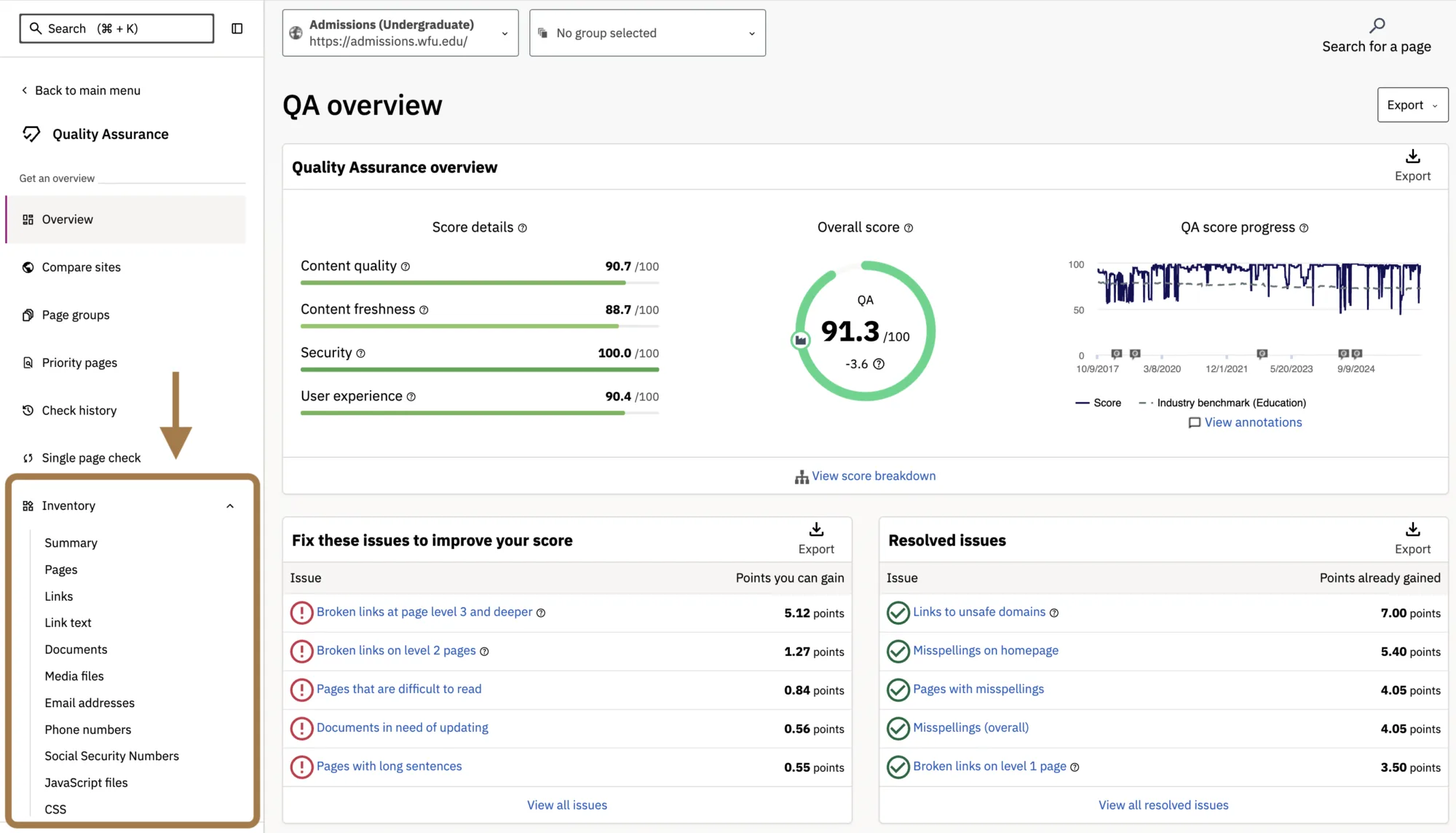
After logging in to Siteimprove, select the site you want to work on. Then, use the left navigation panel to select Quality Assurance and navigate to Inventory > Summary.

Reviewing Data Inventory
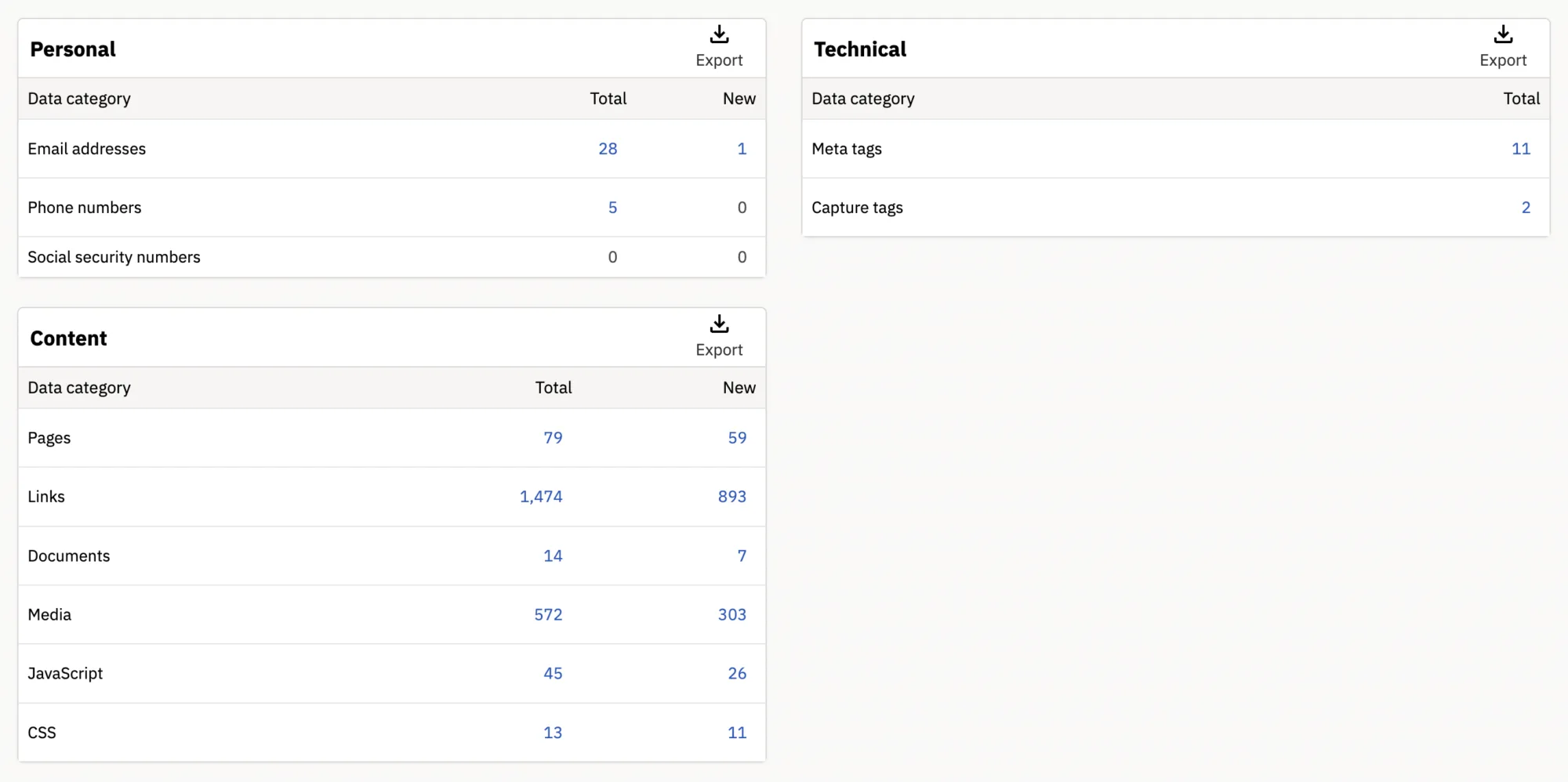
When selecting the Summary option, you’ll be directed to an overview page of all your site’s assets, including content, personal and technical data.
If assets are identified within a data category, the total number of instances will appear in the category’s Total column.
Click the number located under the category you want to begin with to start the review process.
Note: It is recommended that you check over email addresses, phone numbers, and documents to ensure this information is correct a few times a year, as they are accessible to anyone who visits your website.
Personal Data
One of the most important steps you can take is to review your website for personal information that may be published unintentionally or no longer belongs there. In this context, personal information primarily includes email addresses and phone numbers.
While this information is often necessary to help users contact the right people, it’s important to regularly verify that it is accurate and up to date. Doing so helps ensure that users reach the appropriate individuals and prevents outdated contact information from remaining on your site.
In addition to making sure your phone numbers and email addresses are up-to-date, here are a few other things to pay attention to and correct if necessary:
- Each email address is formatted correctly.
- Each phone number is formatted correctly (e.g., 336.758.1234).
- There are no emails or phone numbers that are incorrect or belong to an employee that is no longer in your department or employed with Wake Forest.
- The page(s) that this information is placed should be easily seen by visitors to your site on pages where they would expect to find it.
The Content section, located within Inventory, provides information about the following asset types:
Pages
Published pages on your site along with the date that they were first detected.
Links
Overview of all links included on your site together with an HTTP status code. If you have any broken links on your site, you will see those here.
Documents
A full list of all documents that are actively linked on your site. These include PDFs as well as Microsoft Office files (Word, Excel, etc.)
Media Files
A list of any image, video, or audio file that is linked on your website.
By either selecting an asset name from the left-side Inventory menu, or clicking on the number of assets found listed underneath the Total column on the Summary page, you can learn more about each type of asset and how it’s found on your site.
Sitemap
Whether it’s been a while since you last reviewed the published pages and posts on your site or you’re preparing to conduct a content audit, Siteimprove’s Sitemap feature provides a helpful overview of your site’s content and structure.
To view your sitemap, navigate to Inventory > Sitemap. You’ll see a table that allows you to expand different areas of your website and explore the pages nested within them. Any hyperlinked URL path contains additional pages or sets of pages.
Your Siteimprove Toolbox

Quality Assurance
Discover the steps you can take to create a more effective, engaging, and user-friendly website experience for everyone.

Analytics
A successful content strategy starts with understanding how your website is performing and what your audience is looking for.

Accessibility
Accessibility isn’t just about what happens behind the curtain—it’s about the experience everyone has in front of it.

SEO & Search
Understanding how visitors find your website and what they want is an essential step in developing an effective content strategy.
Online Presentations
Whether you’re planning to attend an upcoming digital strategy presentation or want to revisit a previous session, explore the topics we cover and resources we share.
Digital Strategy
A strong digital strategy serves as the foundation for your website and every aspect of your digital marketing and communications. Here’s what you need to know.
Want to Chat?
We’re here to support your digital strategy efforts. Reach out with questions or schedule a consultation to discuss your website strategy and explore opportunities for improvement.