
Broken Links
Removing Content Barriers
Reviewing and fixing broken links is one of the most important steps you can take to maintain a healthy website and provide a positive experience for your visitors. Broken links create unnecessary barriers, frustrate users, and can make your site appear outdated or unprofessional.
In this tutorial, you’ll learn how to identify broken links and fix them before they become larger issues that impact your website’s usability and credibility.
How to Fix Broken Links
In this video tutorial, you’ll learn how to use Siteimprove’s Quality Assurance module to identify broken links across your website. We’ll walk through how to review and prioritize flagged issues, determine the appropriate action for each link, and follow the recommended process for remediating them to help ensure your website remains accurate, reliable, and easy for users to navigate.
Step-by-Step Guide
Use the step-by-step guide below to learn how to review and fix broken links on your site. Please note that this guide is intended as a supplemental resource and is not a substitute for formal Siteimprove training offered by UMC and Information Systems.
If you do not have access to Siteimprove but would like to use it, you can schedule a training session. We’ll help you become familiar with the platform and ensure you have the knowledge and resources needed to use it effectively.
Site Issues and General Health Report Dashboard
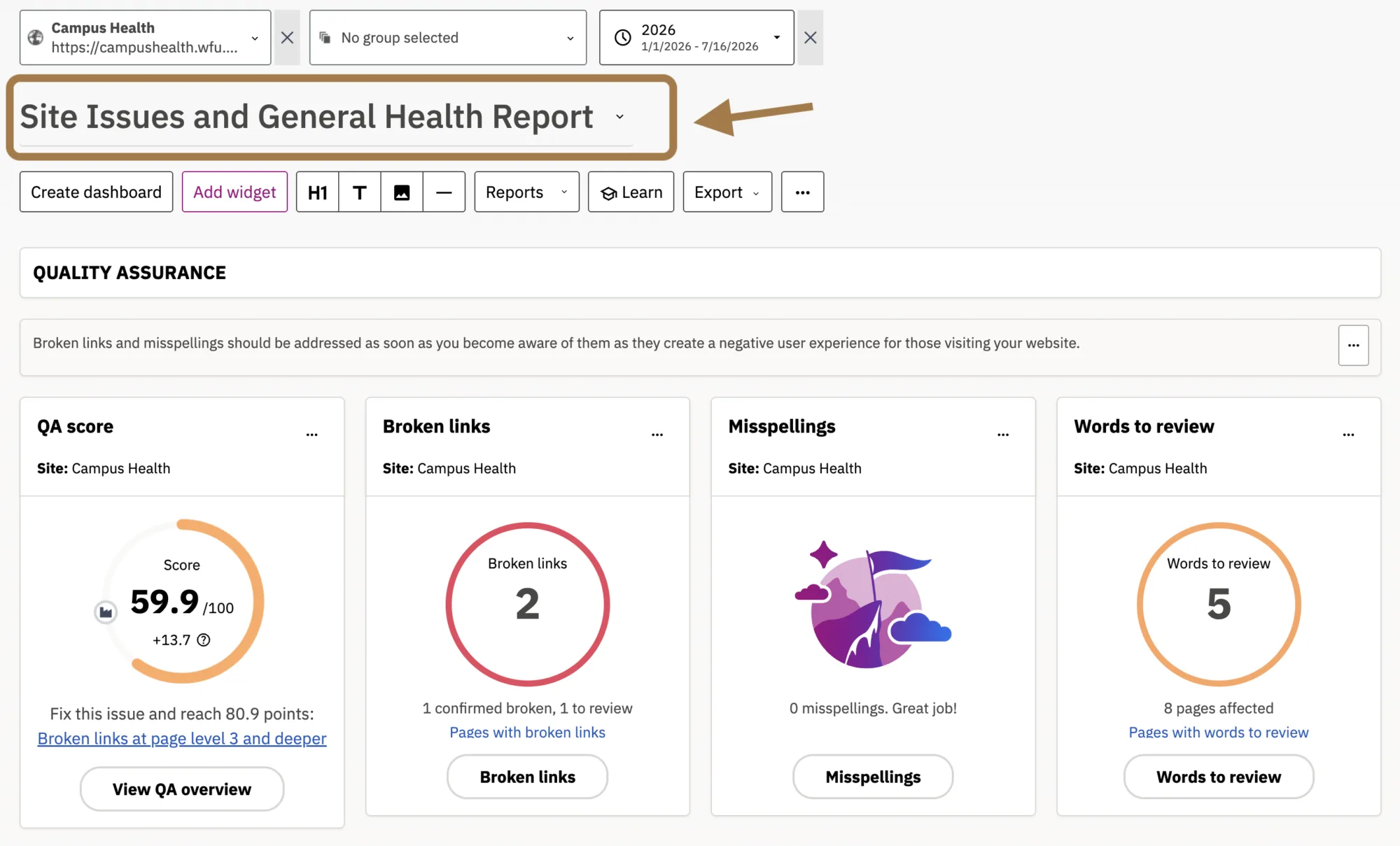
Once you’re logged into Siteimprove, choose the site you want to work on and then select the Site Issues and General Health Report Dashboard from the dropdown menu.
Any quality assurance issues affecting your site will appear at the top of the dashboard. This is where you should focus your attention as you prepare to review and address flagged broken links.

Broken Links Widget
Next, turn your attention to the Broken Links widget. If Siteimprove has identified broken links on your site, you’ll see a number displayed inside a red ring. This number represents the total number of links that Siteimprove has flagged as either broken or requiring further review. The specific issue type is indicated directly below the ring.
Click the Broken Links button to start the review process.
Broken Links Dashboard
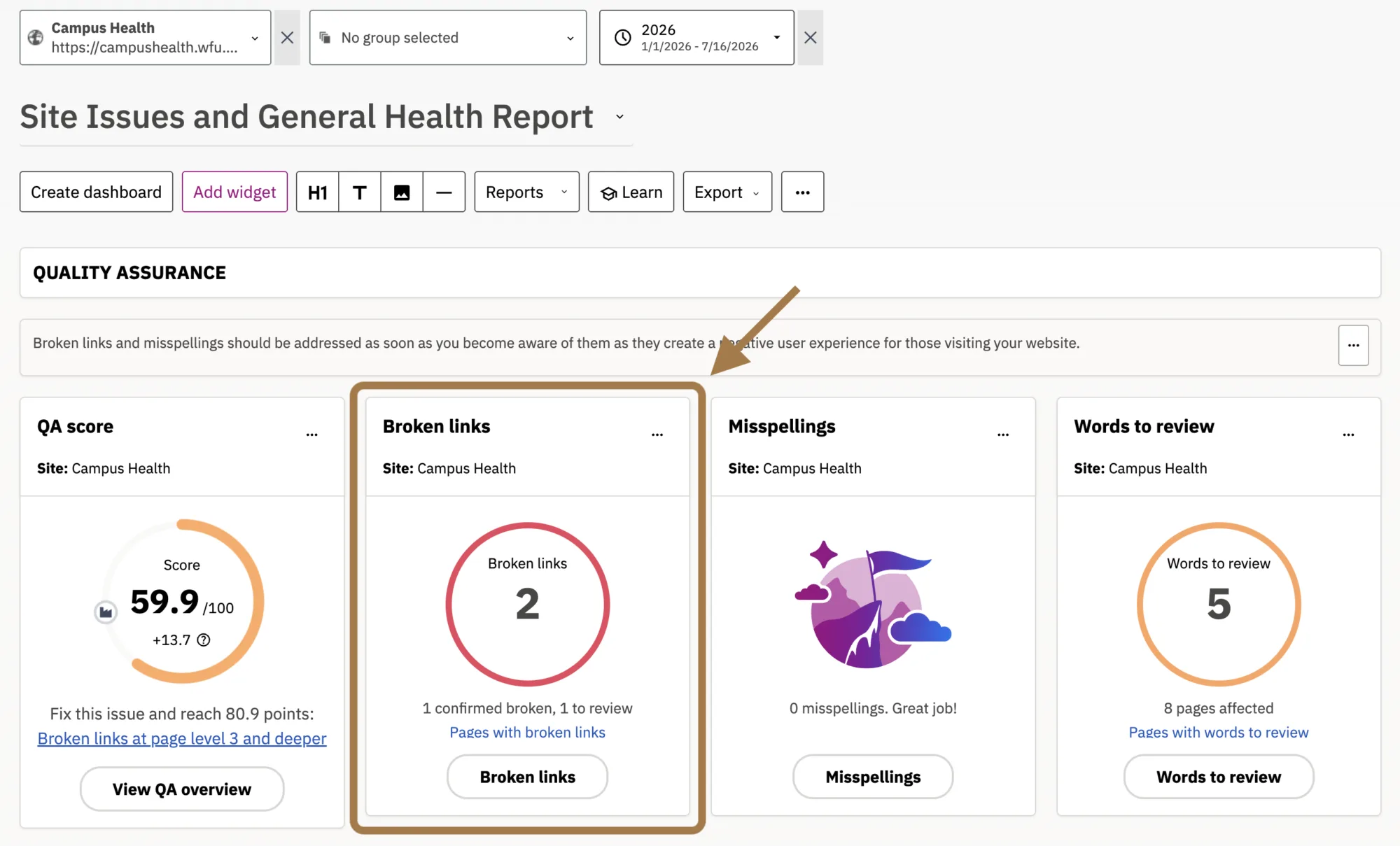
You’ll notice that links requiring attention are organized into two categories: Confirmed Broken Links and Links to Review. If you have any links listed under Confirmed Broken Links, address these first, as they have been verified as broken. (Labeled as 1 in the screenshot)
The URL for each flagged link will appear in the table. Links listed under Confirmed Broken Links lead to 404 error pages. Links listed under Links to Review have not been confirmed as broken, but Siteimprove encountered another type of error that prevented it from accessing or verifying the destination page. (Labeled as 2 in the screenshot)
Once you’ve identified a link as broken by clicking on it, click the arrow under Pages to identify the page(s) the issue is found on.
Next, click on the URL of the page.
Locating and Fixing Broken Links
A new tab will open displaying the page that contains the broken link. If the linked text is visible when the page loads and is not hidden within an accordion or another interactive element that requires user action to reveal it, Siteimprove will highlight the text containing the broken link.
To begin the link remediation process, click on the CMS button at the top of the page.
Note: You’ll need to be logged into your WordPress site for this to work.

This will redirect you to the backend of the page in WordPress. From here you can correct the link and save the page once you’re done.
If you have additional broken links that need to be fixed, go back to your browser tab with Siteimprove that has the table of broken links (as shown in the step previous to this one). Identify the next link that needs to be fixed and repeat the process outlined in this step.
If you need additional support, visit Siteimprove’s Help Center for how to manage broken links on your website.
Understanding HTTP Status Errors
Not all broken links are the same, so it’s important to understand which HTTP status codes require immediate attention and which flagged links may require further review.
As a general rule, you should always address Confirmed Broken Links with a 404 status code. A 404 status indicates that the page or resource the link points to cannot be found, meaning the link is broken for all users who click it.
| Definition | Importance | |
|---|---|---|
| 404: Not Found | The server cannot find the requested resource. This response code is well-known due to its frequent occurrence. The 404 status code is considered a Broken Link in the Siteimprove platform. | High |
| 403: Forbidden | The client does not have access rights to the content so the server is not allowing access to the requested response. (e.g., password protected page) | High |
| Timed Out | This response is sent on an idle connection by some servers, even without any previous request by the client. It means that the server would like to shut down this unused connection. | Medium |
| Too Many Requests | The user has sent too many requests in a given amount of time. Intended for use with rate-limiting schemes to control the rate of traffic sent or received to prevent DoS attacks. | Medium |
| Bad Request | This response means that server could not understand the request due to invalid syntax. | Medium |
| Internal Server Error | The server has encountered a situation it doesn’t know how to handle. | Medium |
Broken Links in PDFs
In this tutorial, you’ll learn how to use Siteimprove to identify broken links that have been identified in any PDFs that are published on your website.
Identifying and Fixing Broken Links in PDFs
Siteimprove includes a dedicated report for broken links found within PDFs as part of its Quality Assurance module. If your website includes published PDFs with hyperlinks, Siteimprove will evaluate those links as part of its site crawl. Any issues it identifies can be found in the Broken Links in PDFs section.
To access this report, select Quality Assurance from the menu on the left. Then, under the Optimize category, select Links and choose Broken Links in PDFs. If Siteimprove has identified any broken links or links requiring further review within your PDFs, they will appear in this report.
Because PDFs are uploaded files, you cannot fix these links directly within Siteimprove. Instead, you’ll need to update the original PDF file and correct the broken link within the document itself.
Once you’ve corrected the link, re-upload the updated PDF to your WordPress Media Library. Be sure to replace the existing file or remove the original before uploading the corrected version so that the updated PDF is the version available on your site.
What PDFs are crawled on my site?
Siteimprove will only crawl and scan PDFs that are linked somewhere on your website. PDF files that have been uploaded to your WordPress Media Library but are not linked from any page will not be included in Siteimprove’s crawl.
If you have PDFs that are uploaded but no longer linked on your site, review them to determine whether they are still relevant and necessary. If a PDF is outdated or no longer needed, remove it from your Media Library. This helps prevent users from accessing outdated content through search engines or other direct links.
Accessibility and PDFs
Making PDFs accessible helps ensure that everyone can read, understand, and navigate your documents, including people who use assistive technologies such as screen readers. Accessible PDFs can also make documents easier to use for people with visual, motor, cognitive, or hearing disabilities.
Creating accessible PDFs is an important part of making your website more inclusive and can also help your institution meet accessibility requirements under laws such as the Americans with Disabilities Act (ADA) and Section 508.
Your Siteimprove Toolbox

Quality Assurance
Discover the steps you can take to create a more effective, engaging, and user-friendly website experience for everyone.

Analytics
A successful content strategy starts with understanding how your website is performing and what your audience is looking for.

Accessibility
Accessibility isn’t just about what happens behind the curtain—it’s about the experience everyone has in front of it.

SEO & Search
Understanding how visitors find your website and what they want is an essential step in developing an effective content strategy.
Online Presentations
Whether you’re planning to attend an upcoming digital strategy presentation or want to revisit a previous session, explore the topics we cover and resources we share.
Digital Strategy
A strong digital strategy serves as the foundation for your website and every aspect of your digital marketing and communications. Here’s what you need to know.
Want to Chat?
We’re here to support your digital strategy efforts. Reach out with questions or schedule a consultation to discuss your website strategy and explore opportunities for improvement.