
Misspellings
Make Every Word Count
Fixing misspellings and grammatical errors is essential because even minor mistakes can undermine your brand’s credibility and make your organization appear unprofessional or careless. Errors can also negatively affect user engagement and increase bounce rates.
More importantly, consistently poor-quality content may signal to search engines that a website is less trustworthy or valuable, potentially reducing visibility and costing you valuable traffic and conversions.
How to Fix Misspellings
In this step-by-step tutorial, you’ll learn how to use Siteimprove’s Quality Assurance module to identify misspellings and words that require manual review across your website. We’ll walk through how to review and prioritize flagged issues, determine the appropriate action for each word, and follow the recommended remediation process to help keep your website free of spelling errors.
Step-by-Step Guide
Use the step-by-step guide below to learn how to review and fix misspellings and other grammatical issues on your site. Please note that this guide is intended as a supplemental resource and is not a substitute for formal Siteimprove training offered by UMC and Information Systems.
If you do not have access to Siteimprove but would like to use it, you can schedule a training session. We’ll help you become familiar with the platform and ensure you have the knowledge and resources needed to use it effectively.
Site Issues and General Health Report Dashboard
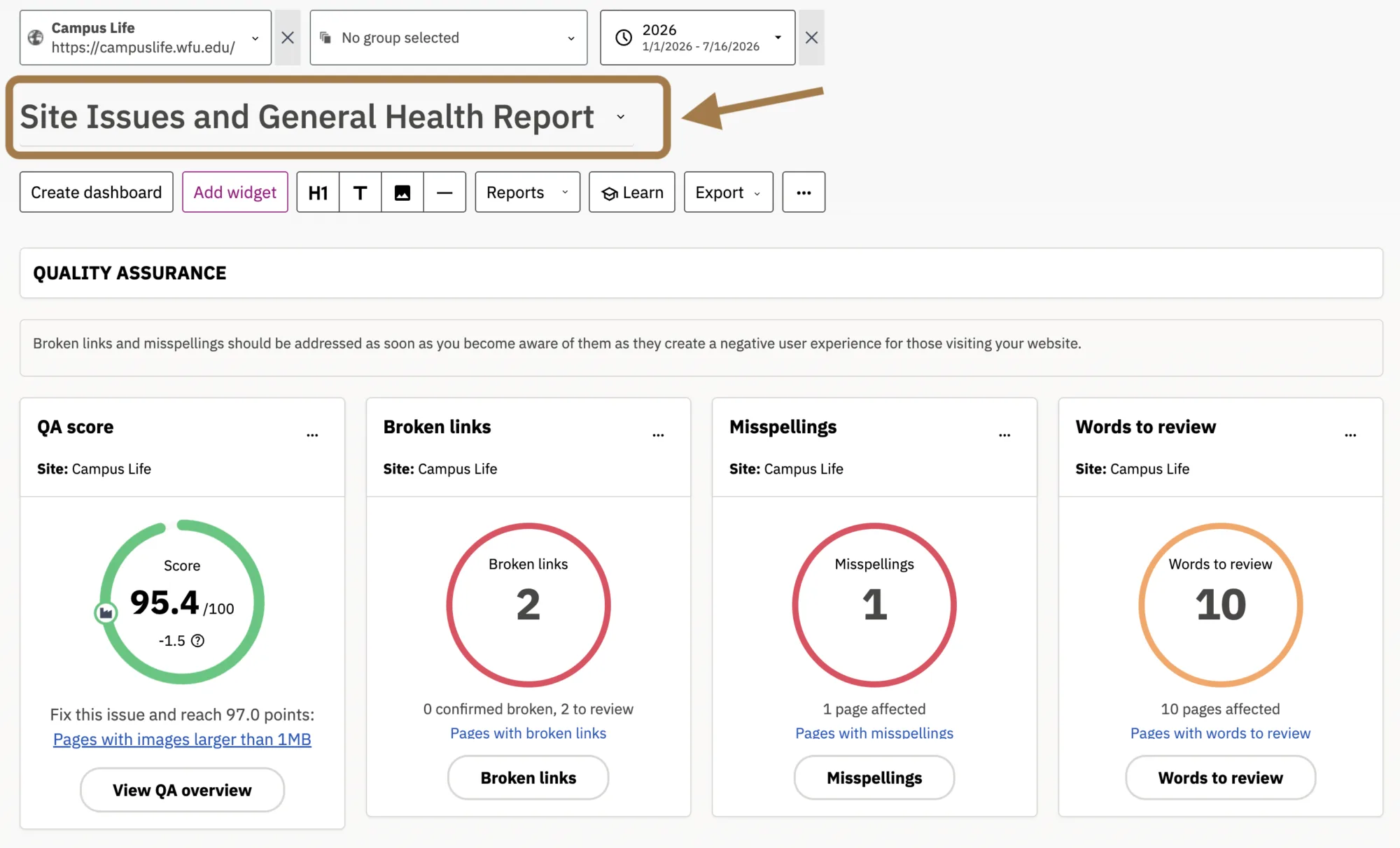
Once you’re logged into Siteimprove, choose the site you want to work on and then select the Site Issues and General Health Report Dashboard from the dropdown menu.
Any quality assurance issues affecting your site will appear at the top of the dashboard. This is where you should focus your attention as you prepare to review and address flagged misspellings.

Misspellings & Words to Review Widgets
Next, turn your attention to the Misspellings and Words to review widgets. If Siteimprove has identified misspellings or words that need to be manually reviewed on your site, you’ll see a number displayed inside each red ring. This number represents the total number of words that Siteimprove has flagged as either misspelled or requiring further review.
The Misspellings widget identifies potential spelling errors, while Words to Review flags words that require manual verification. Clicking either button takes you to the corresponding tab in the Misspellings dashboard.
Click the Misspellings button to start the review process.
Misspellings Dashboard
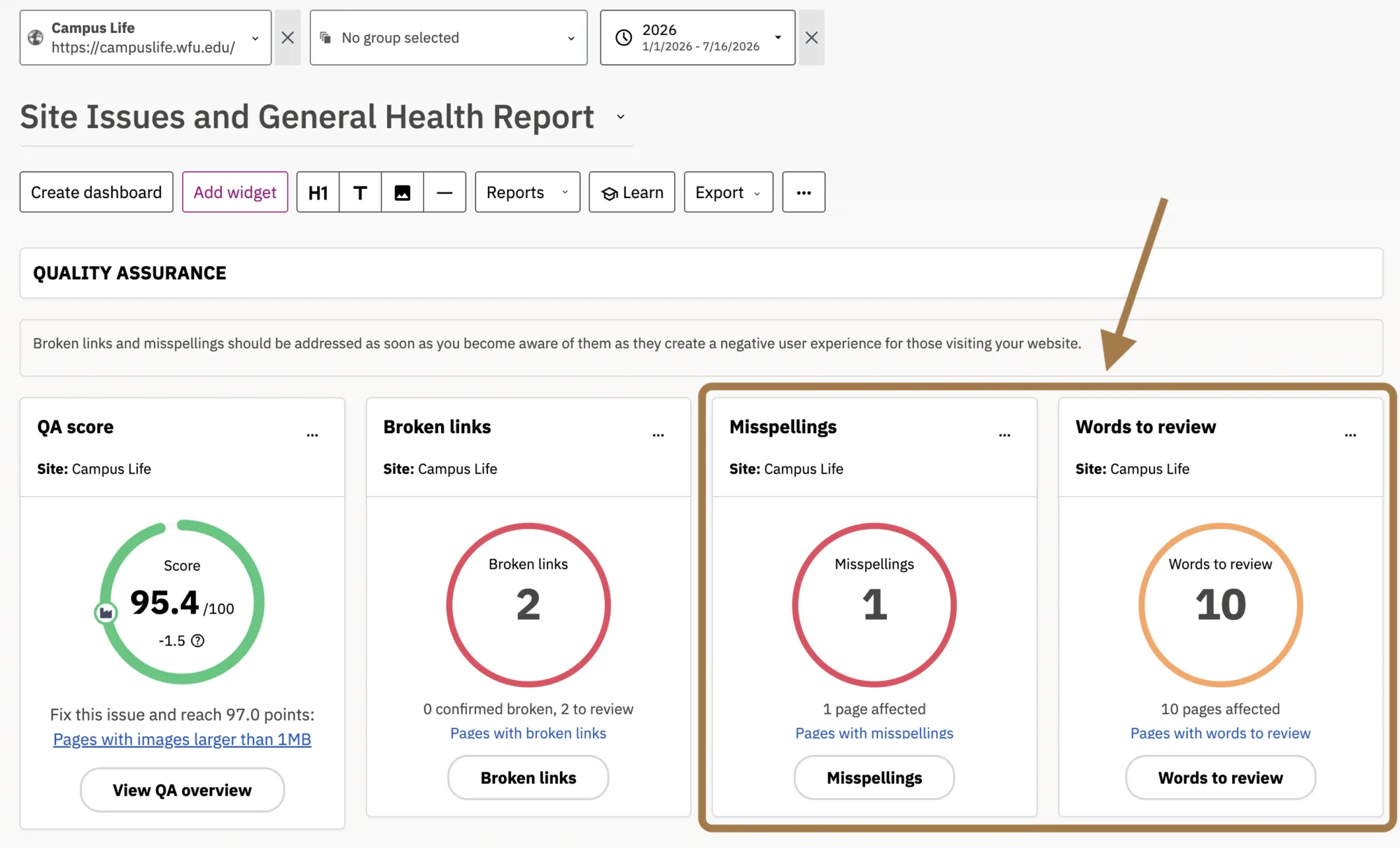
You’ll notice that links requiring attention are organized into two categories: Misspellings and Needs Review. If you have any words listed under Misspellings, address these first, as they have been verified as being misspelt. (Labeled as 1 in the screenshot)
Not every word Siteimprove flags as misspelled is necessarily incorrect. This category includes words that Siteimprove identifies as potential misspellings because they closely resemble another word with a similar spelling.
Each flagged word will be displayed in the table on the page. Next to the flagged word you will see a spelling suggestion based on what Siteimprove thinks the correct word should be. (Labeled as 2 in the screenshot)
If the word is correct, check the box next to it or click the thumbs up icon under “Decision for account” to mark it as an approved word. If it’s incorrect, you will need to fix it in WordPress.
Once you’ve identified a misspelling, click the arrow under Pages to identify the page(s) the issue is found on. (Labeled as 3 in the screenshot)
Next, click on the URL of the page.
Locating and Fixing Misspellings
A new tab will open displaying the page that contains the misspelling. If the misspelling is visible when the page loads and is not hidden within an accordion or another interactive element that requires user action to reveal it, Siteimprove will highlight the word that is misspelt.
To begin the link remediation process, click on the CMS button at the top of the page.
Note: You’ll need to be logged into your WordPress site for this to work.

This will redirect you to the backend of the page in WordPress. From here you can correct the word and save the page once you’re done.
If you have additional misspellings that need to be corrected, go back to your browser tab with Siteimprove that has the table of misspellings (as shown in the step previous to this one). Identify the next word that needs to be fixed and repeat the process outlined in this step.
If you need additional support, visit Siteimprove’s Help Center for how to manage misspellings on your website.
Spelling Resources
The Spelling feature within Siteimprove’s Quality Assurance module includes additional resources that can help you evaluate your website’s grammatical accuracy, tone, and overall readability. A few of these resources are highlighted below.
These resources can be found in the Spelling section of the Quality Assurance module.
For more guidance on creating clear, supportive, and engaging website content, visit Writing for the Web in the Digital Strategy section of this site. There, you’ll find helpful tips and best practices for writing effective web content.
Pages with misspellings
This is a quick way to view all pages on your site that have misspellings. If you’re more interested in learning about what pages have misspellings rather than what the misspellings are first, this is a good place to start.
Word inventory
The word inventory gives you an alphabetical overview of every word that has been detected on your website.
Spelling decisions
All decisions that have been made on approved words and misspellings. Here you can undo existing decisions, which will place a word back into its original state.
Your Siteimprove Toolbox

Quality Assurance
Discover the steps you can take to create a more effective, engaging, and user-friendly website experience for everyone.

Analytics
A successful content strategy starts with understanding how your website is performing and what your audience is looking for.

Accessibility
Accessibility isn’t just about what happens behind the curtain—it’s about the experience everyone has in front of it.

SEO & Search
Understanding how visitors find your website and what they want is an essential step in developing an effective content strategy.
Online Presentations
Whether you’re planning to attend an upcoming digital strategy presentation or want to revisit a previous session, explore the topics we cover and resources we share.
Digital Strategy
A strong digital strategy serves as the foundation for your website and every aspect of your digital marketing and communications. Here’s what you need to know.
Want to Chat?
We’re here to support your digital strategy efforts. Reach out with questions or schedule a consultation to discuss your website strategy and explore opportunities for improvement.