
Alternative (Alt) Text
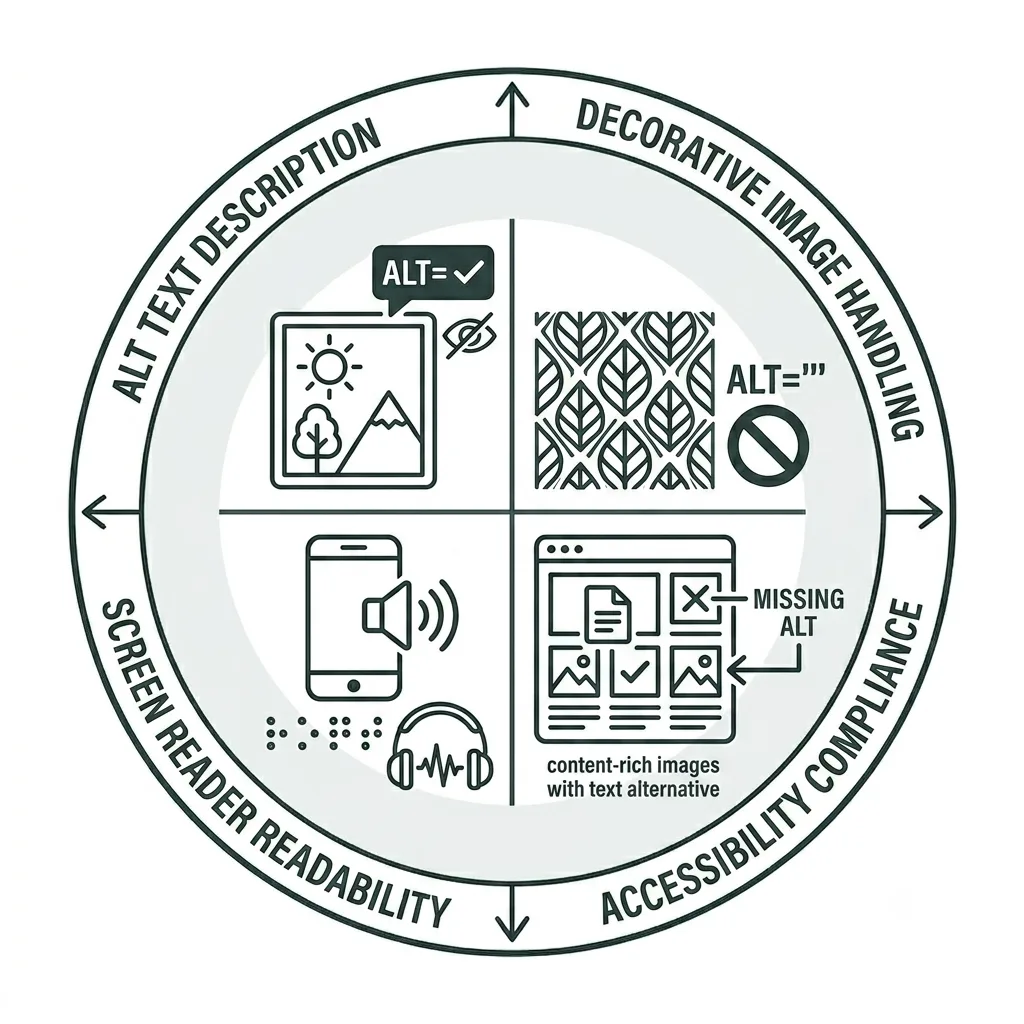
Writing Effective Alternative Text for Accessible Images
Providing alternative text, or alt text, is an important step in making sure images published on your website are accessible and meet digital accessibility requirements. Alt text concisely shares the meaning of an image for people who cannot see it, including users who rely on screen readers.
Below, we’ll go over how to write meaningful, context-appropriate alt text and show you how it helps ensure that images contribute to the experience rather than creating barriers to accessing your content.
Alternative Text Video Tutorial
Providing alternative text for images is an essential part of creating an accessible website. In this tutorial, you’ll learn how to use Siteimprove to identify pages with images that are missing alternative text and how to correct those issues in WordPress, helping ensure your content is accessible to all visitors.
What is Alternative Text?
Alternative text, or alt text, is a short, concise written description that conveys the meaning and function of images in their context. It provides information about the image for users of screen readers, braille displays, and other assistive technologies. It also benefits users when images don’t load for reasons of tech or data transfer issues.
Some images can be marked as decorative, but all images that give additional information to the page, such as those with text embedded in them, should have appropriate alt text that shares the purpose of the image in context.
The good news is that our current UMC WordPress theme makes it easy to add alt text when you upload media, so you hopefully won’t encounter many instances of missing alt text. However, automated checkers may not identify alt text that is present but inadequate or fails to convey an image’s purpose. These issues can also be introduced through older content or other tools.
As a best practice, conduct an initial review of your Media Library and repeat it annually to ensure that your images have meaningful, context-appropriate alt text. You should also address any alt text issues identified in Siteimprove’s Accessibility Report.
Fixing Alt Text Issues
Use the step-by-step guide below to learn how to review and fix alt text issues on your site. Please note that this guide is intended as a supplemental resource and is not a substitute for formal Siteimprove training offered by UMC and Information Systems.
If you have access to Siteimprove but have not yet completed formal training, please schedule a training session. We’ll help you become familiar with the platform and ensure you have the knowledge and resources needed to use it effectively.
Accessibility Report Dashboard
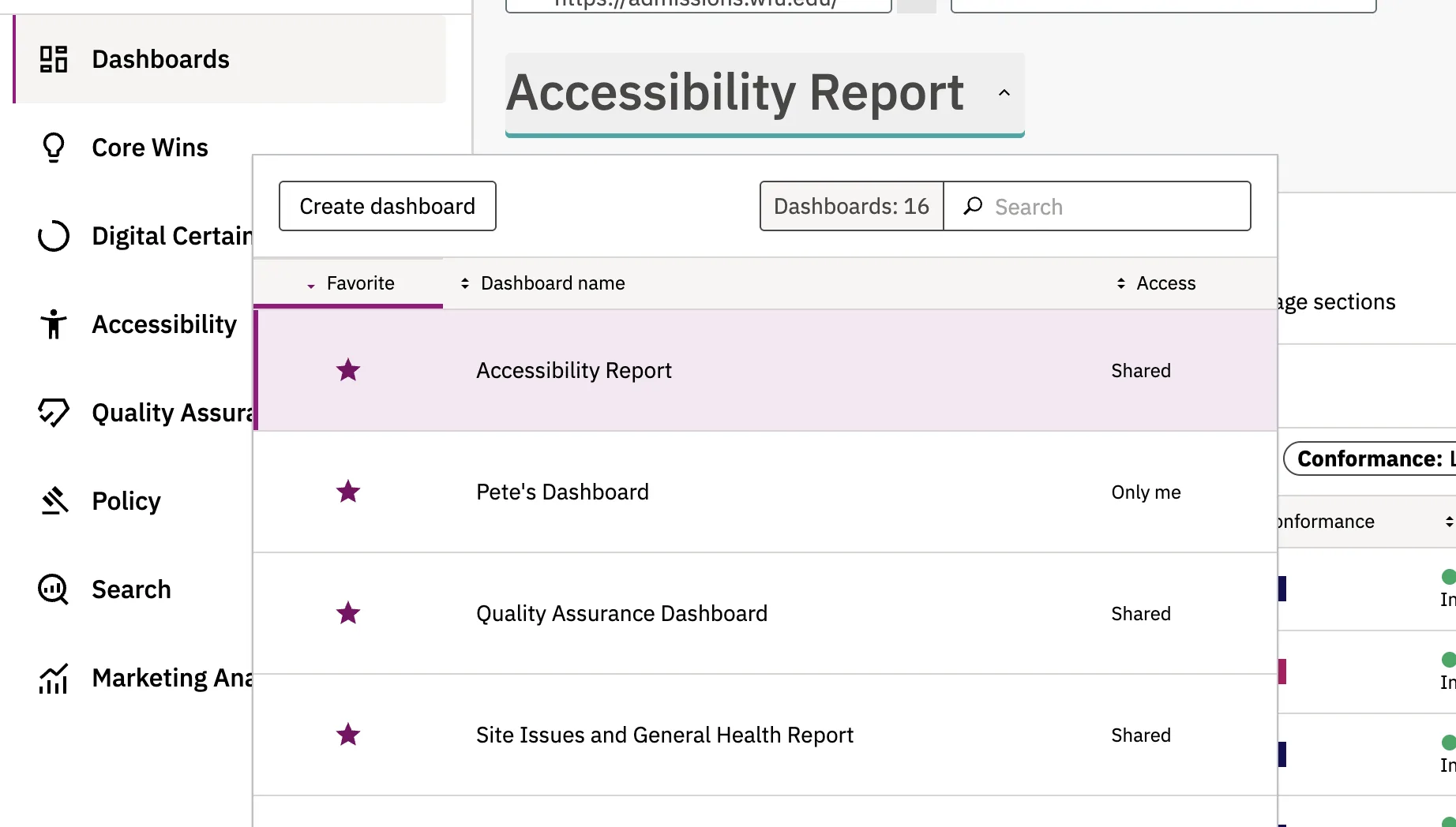
Once you’re logged into Siteimprove, choose the site you want to work on and then select the Accessibility Report Dashboard from the dropdown menu.

Identifying Alt Text Issues
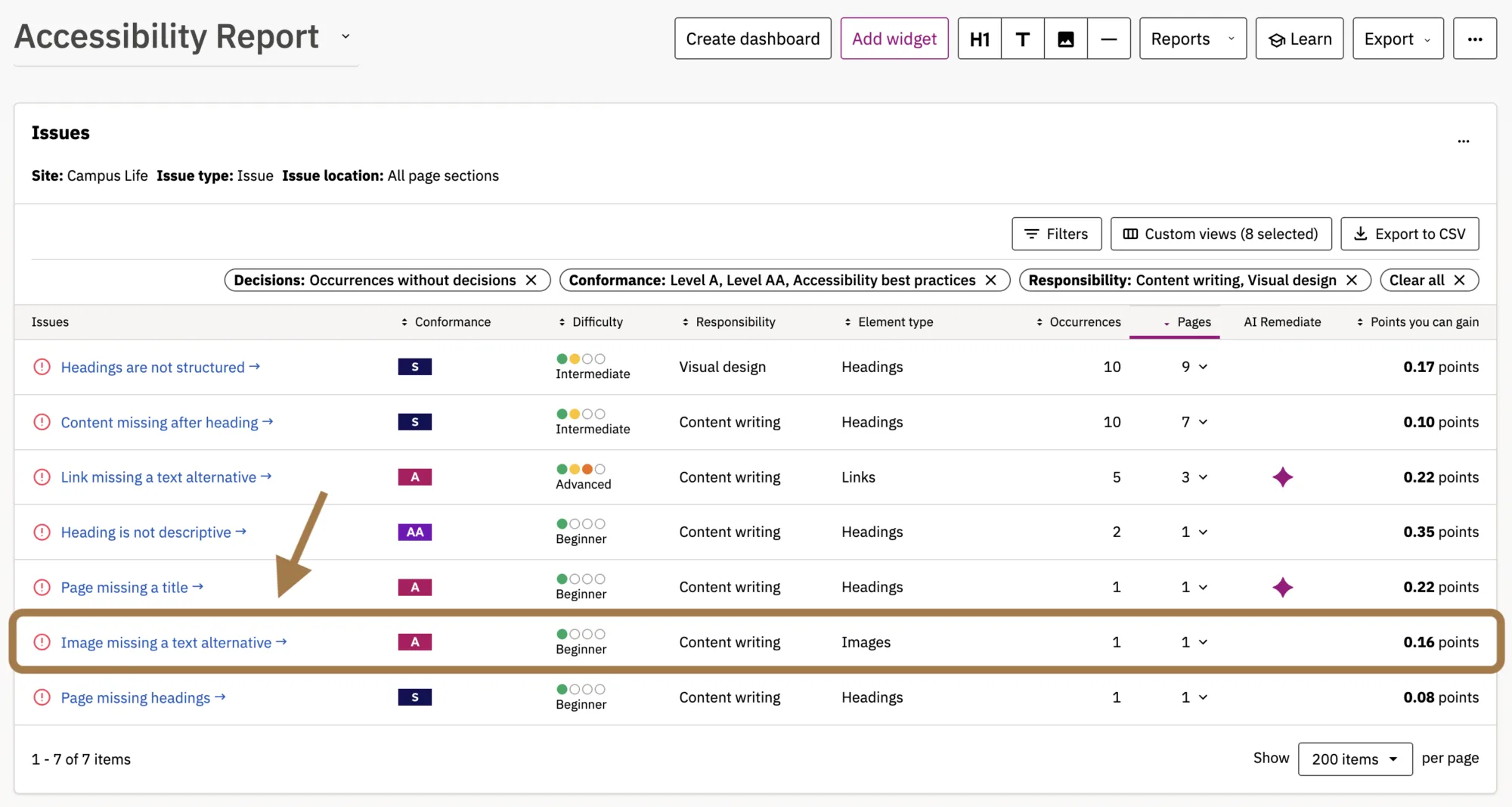
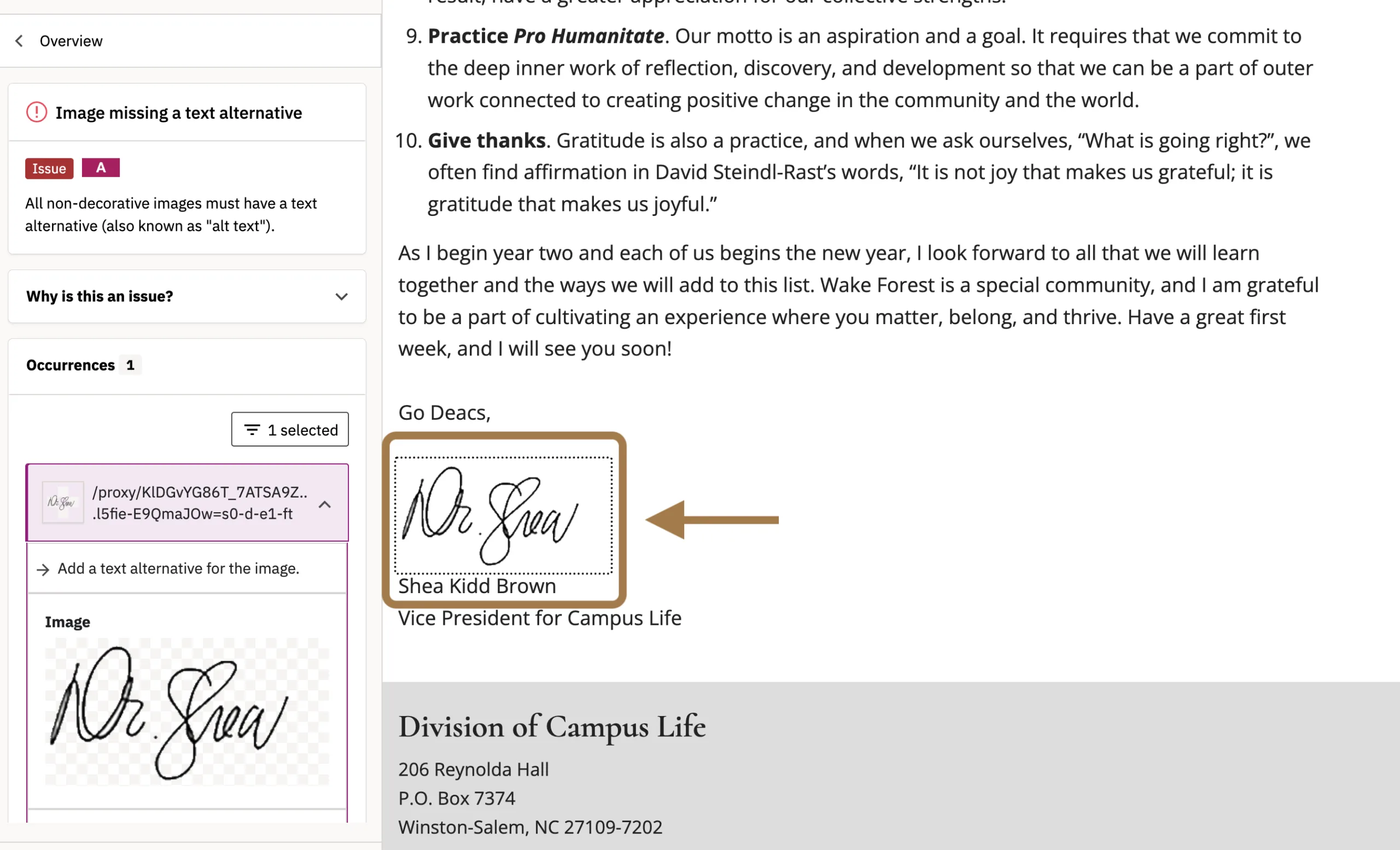
To find any instance of missing alt text on your site, refer to your Accessibility Report dashboard for Issues or Potential Issues. One of the most frequent Issues that shows up will be “Image missing a text alternative,” as seen in this screenshot.
Click on this to get started.
Affected Images
Additional information about each affected image, including the page that the image is located on, will show up in the table labeled Pages with this issue.
If you know which image is affected without needing to view the page in Siteimprove, click the CMS button to go directly to WordPress and fix the issue. If you’re not sure which image is affected, click the page URL.
Fixing the Issue
A new tab will open, displaying the affected image within the Siteimprove interface and showing where it appears on your page. On the left, a sub-dashboard explains the issue, why it matters, and where it occurs, along with code examples to help you resolve it.
To begin the alt text remediation process, click on the CMS button at the top of the page.
Note: You’ll need to be logged into your WordPress site for this to work.

This will redirect you to the backend of the page in WordPress. Locate the image that needs its alt text edited and click the image. The right-hand side will populate with an Alternative Text block for your entry of the meaning or purpose.
Remember: If the image acts as a link, the alt text should tell the user about what the link will take them to. Refer to Meaningful Links for more information.
How to address alt text before it becomes an issue.
Whether you’re creating a new page with one or more images or updating an existing page with a new photo, establishing accurate alt text as soon as you add an image can help prevent issues from appearing in Siteimprove—and reduce the time you’ll need to spend remediating them later.
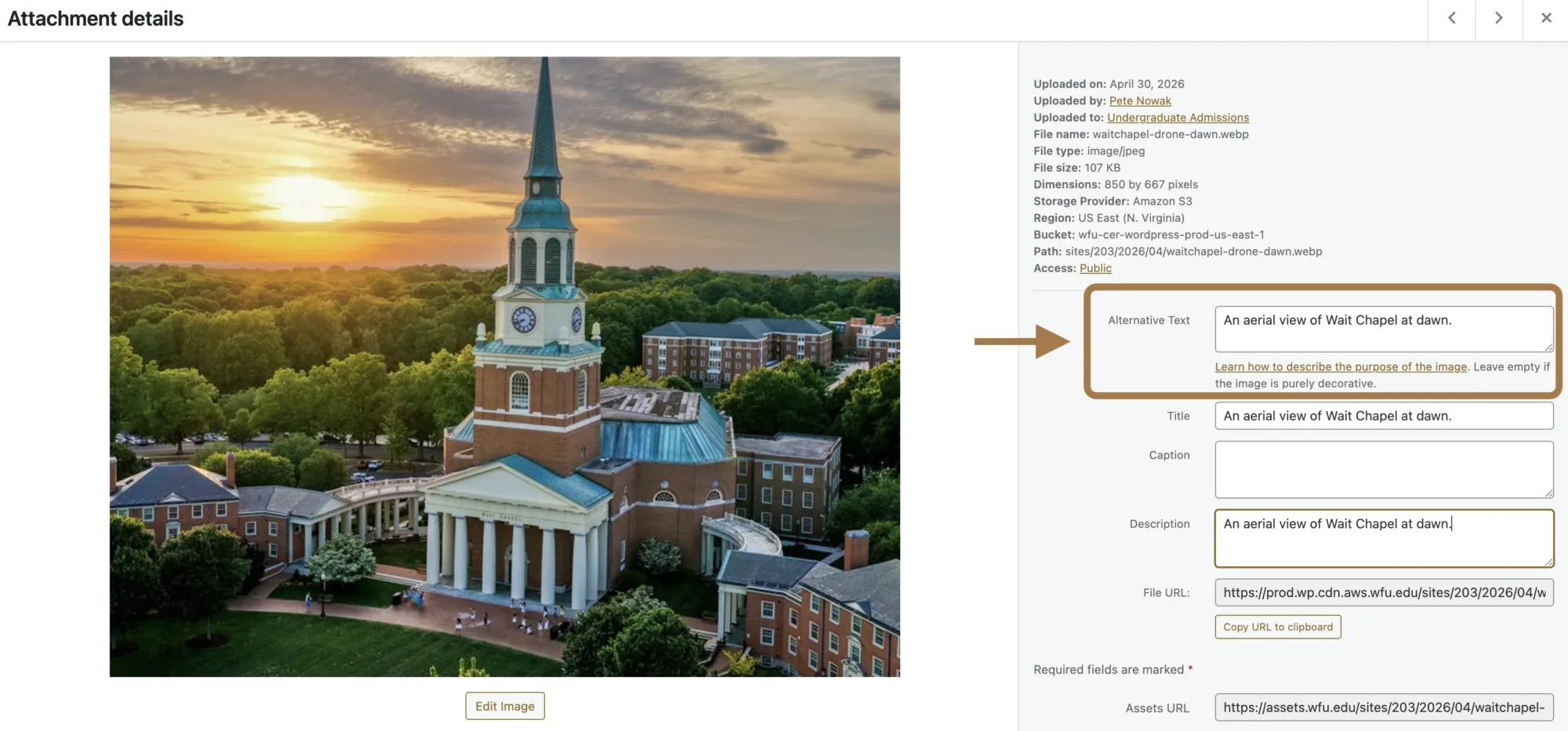
The best practice in our WordPress environment is to add alt text when you upload an image directly to your Media Gallery. You can enter the alt text on the attachment details screen, as shown here:
Alternatively, if you add an image directly to a page using the Image block, you can select the image and enter the alt text on the page, as shown below.
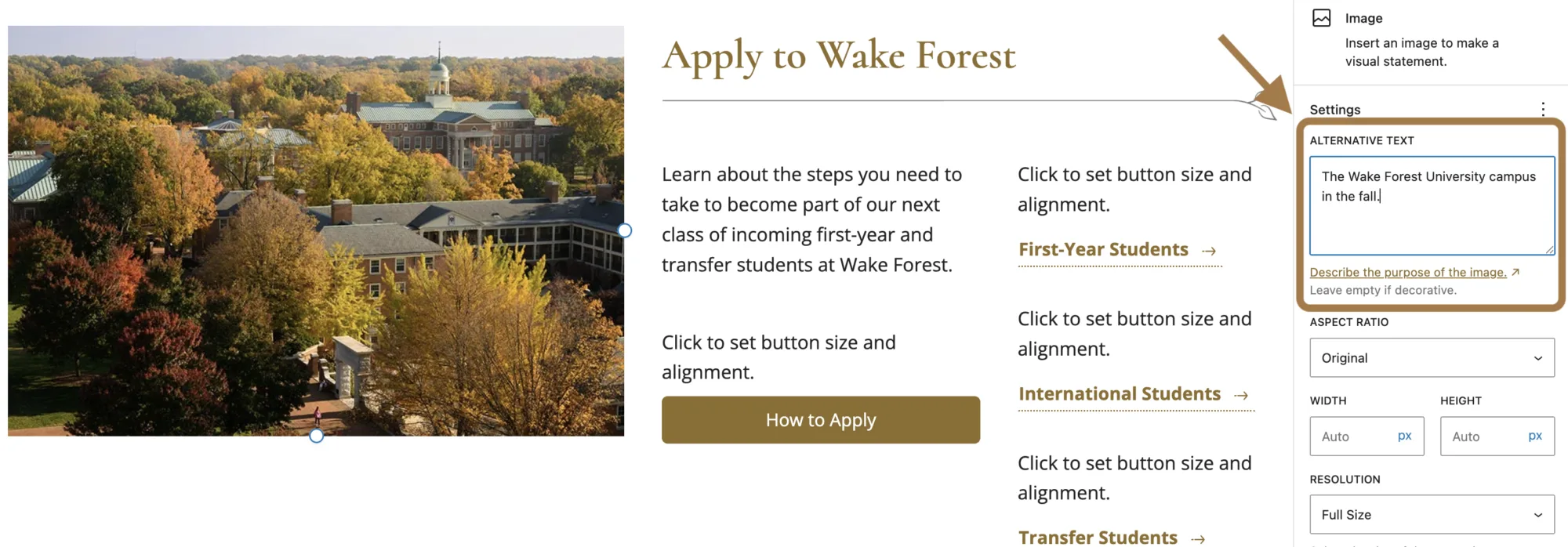
The drawback to this approach is that the alt text will only be applied to the image on that specific page. If you reuse the same image elsewhere on your site, you’ll need to enter the alt text again.
Adding alt text to images in your Media Library is the most efficient approach. Once alt text is added to an image, it will be available whenever you add or reuse that image on another page, helping ensure the image is properly described each time.
If you add an image to a page that is not in your Media Library, enter alt text directly in the image block that describes the image’s purpose and context on that page.
When adding an image from your Media Library that already has alt text, consider whether the image provides additional meaning or information in its new context. If it does, revise the alt text to reflect that purpose. Changes made to the alt text on the page will not affect the baseline alt text saved with the image in your Media Library.
Decorative images
Some images are used purely for visual appeal and do not add meaning or information to the page. These are considered decorative images.
An example of an image that does not need alt text would be the WFU shield separator:
This image is purely decorative and does not add any context or value to the content, but instead is used to create separation between content sections.
If you add an image from the Media Library with short descriptive alt text, you can leave the alt text in place or remove it so WordPress marks the image as decorative. Screen readers will then skip the image.
When adding an image directly to a page, consider whether it contributes meaningful information or context. If it does, be sure to provide concise, contextually relevant alt text that describes the image’s purpose on the page.
You also don’t need to include words such as “image” or “graphic” in your alt text. Screen readers already identify images as such, so focus your description on the information the image conveys.
Your Siteimprove Toolbox

Quality Assurance
Discover the steps you can take to create a more effective, engaging, and user-friendly website experience for everyone.

Analytics
A successful content strategy starts with understanding how your website is performing and what your audience is looking for.

Accessibility
Accessibility isn’t just about what happens behind the curtain—it’s about the experience everyone has in front of it.

SEO & Search
Understanding how visitors find your website and what they want is an essential step in developing an effective content strategy.
Online Presentations
Whether you’re planning to attend an upcoming digital strategy presentation or want to revisit a previous session, explore the topics we cover and resources we share.
Digital Strategy
A strong digital strategy serves as the foundation for your website and every aspect of your digital marketing and communications. Here’s what you need to know.
Want to Chat?
We’re here to support your digital strategy efforts. Reach out with questions or schedule a consultation to discuss your website strategy and explore opportunities for improvement.