
PDFs
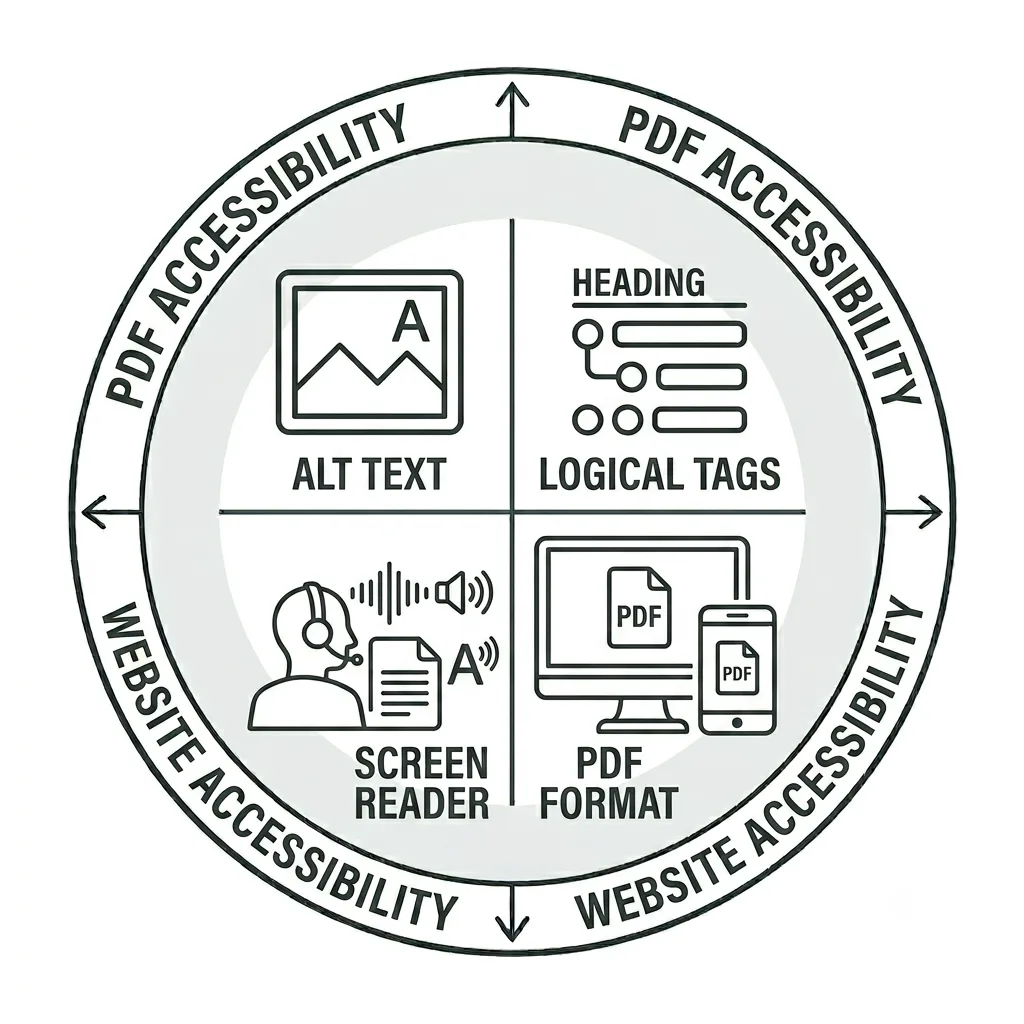
Why PDF Accessibility Matters
Beyond reviewing Issues and Potential Issues, you should also review your Accessibility-Tested PDFs for additional opportunities to improve accessibility.
PDFs that are not created with accessibility in mind can create barriers for people with disabilities and limit your audience. Revising or converting PDFs is an impactful way to make your website more accessible.
For more information about PDF accessibility, remediation, and alternative formats, contact the IS Technology Accessibility Team or participate in the annual Extreme Makeover: PDF Edition each November.
PDF Accessibility Video Tutorial
Just like web pages, any downloadable PDFs should be accessible to all users. While PDFs can be useful, they should be used carefully—consider using a web page instead whenever possible, and reserve PDFs for content that must be downloaded or printed.
In this tutorial, you’ll learn how to use Siteimprove to identify PDF accessibility issues and recognize common problems that affect usability.
What PDFs are scanned on my site?
Only published PDFs that are linked somewhere on your site will be crawled and scanned by Siteimprove and appear in the Accessibility-Tested PDFs section of your Accessibility Report.
We strongly recommend periodically auditing your entire WordPress Media Library for PDFs that are no longer linked on your site but may still be searchable. This can help you determine whether those files are still needed and, if so, whether they can be improved for accessibility.
Reviewing PDFs for Issues
Use the step-by-step guide below to learn how to review PDFs on your site and identify any issues. Please note that this guide is intended as a supplemental resource and is not a substitute for formal Siteimprove training offered by UMC and Information Systems.
If you have access to Siteimprove but have not yet completed formal training, please schedule a training session. We’ll help you become familiar with the platform and ensure you have the knowledge and resources needed to use it effectively.
Accessibility Report Dashboard
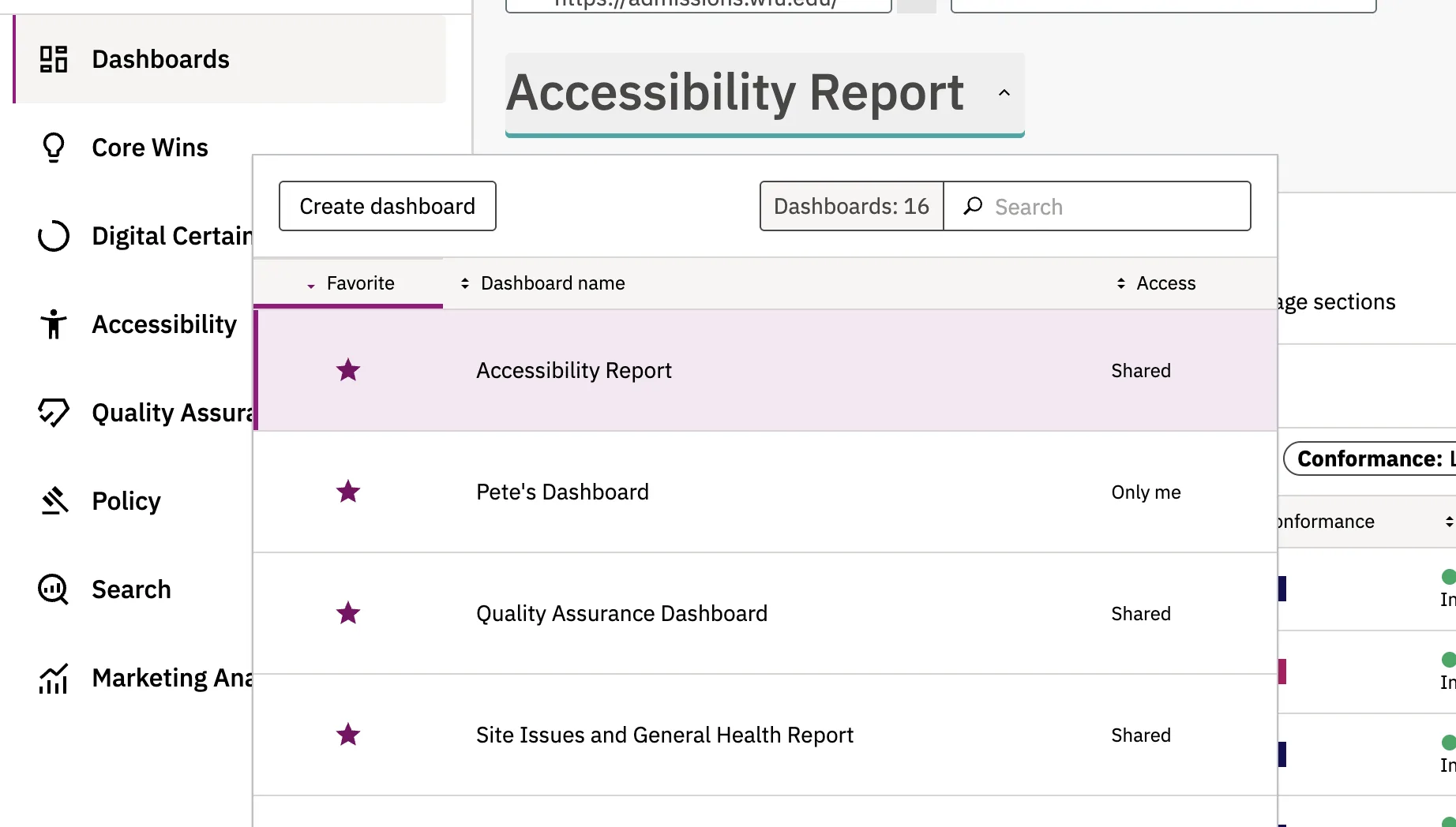
Once you’re logged into Siteimprove, choose the site you want to work on and then select the Accessibility Report Dashboard from the dropdown menu.

Identifying PDF Issues
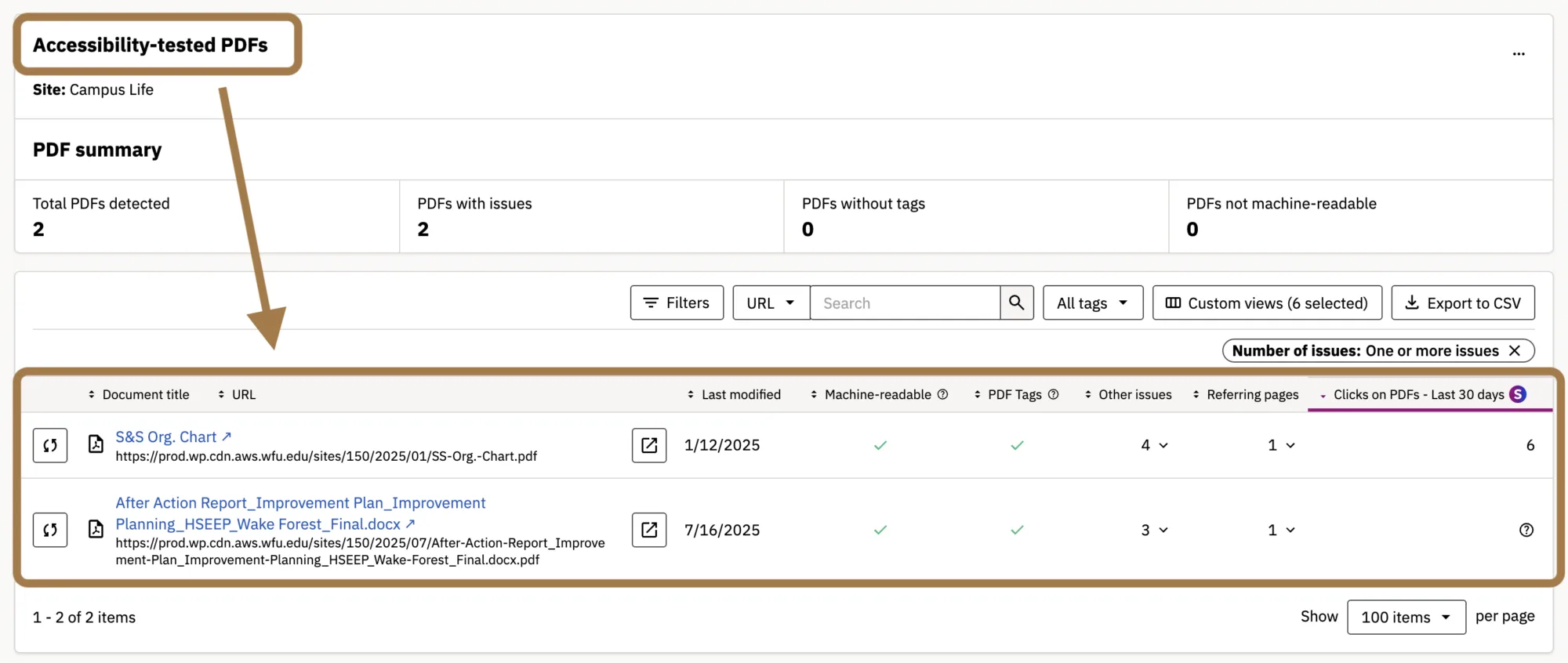
Any PDF that needs to be reviewed on your site will appear on the Accessibility-tested PDF report at the bottom of the dashboard.
Affected PDFs
Additional information about each affected PDF appears in the same row as the file in the table, providing a quick overview of the common issues affecting it.
PDFs should be machine-readable and have PDF tags. There are columns to indicate these features for each PDF. Machine-readable PDFs and tagged PDFs are vital for those who use various assistive technologies to engage with digital content like that on the web. Without these important accessibility features, this content may not be available to part of your audience.
Other issues will also be indicated. Other issues might include no title or no language indication. These can introduce accessibility and usability barriers and make your content harder to consume or find.
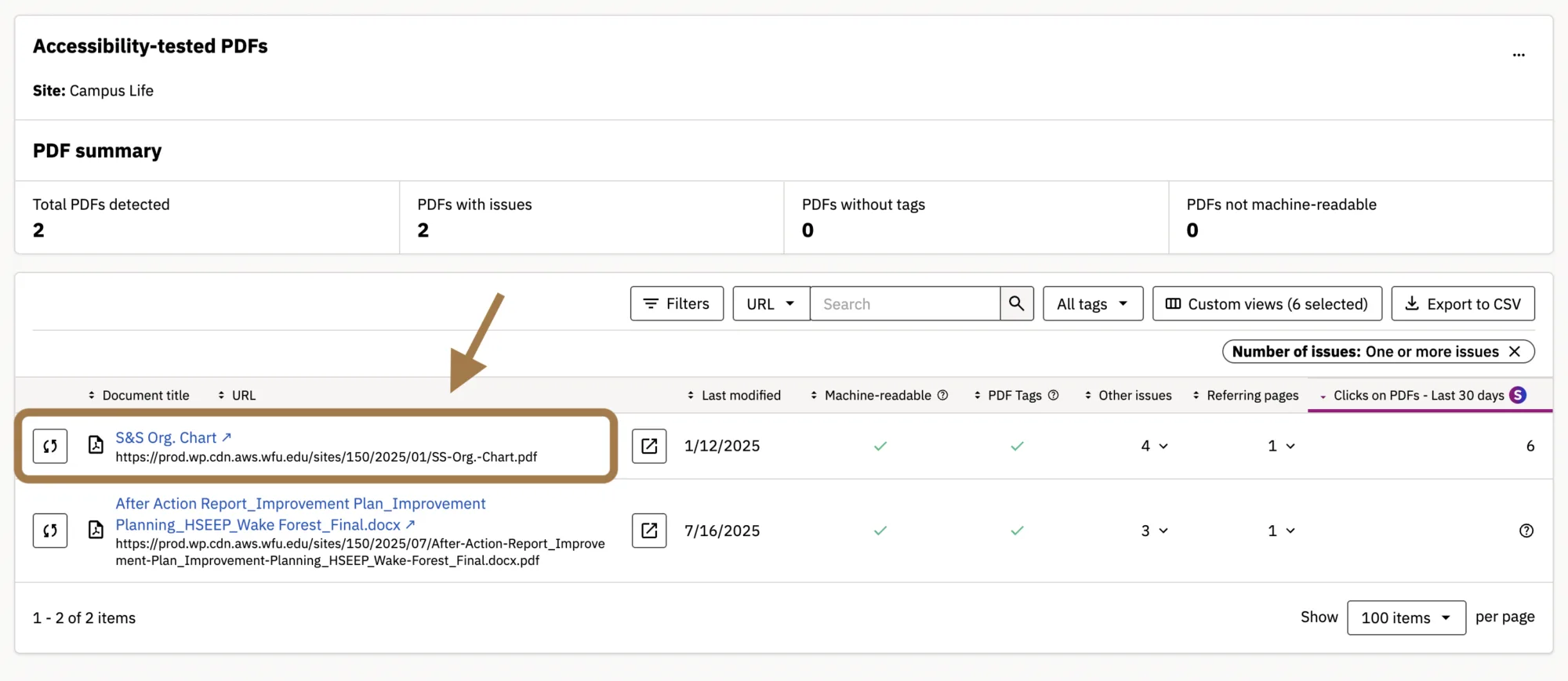
Select a PDF to learn more about the issues affecting it and how to remediate them.
Fixing the Issue
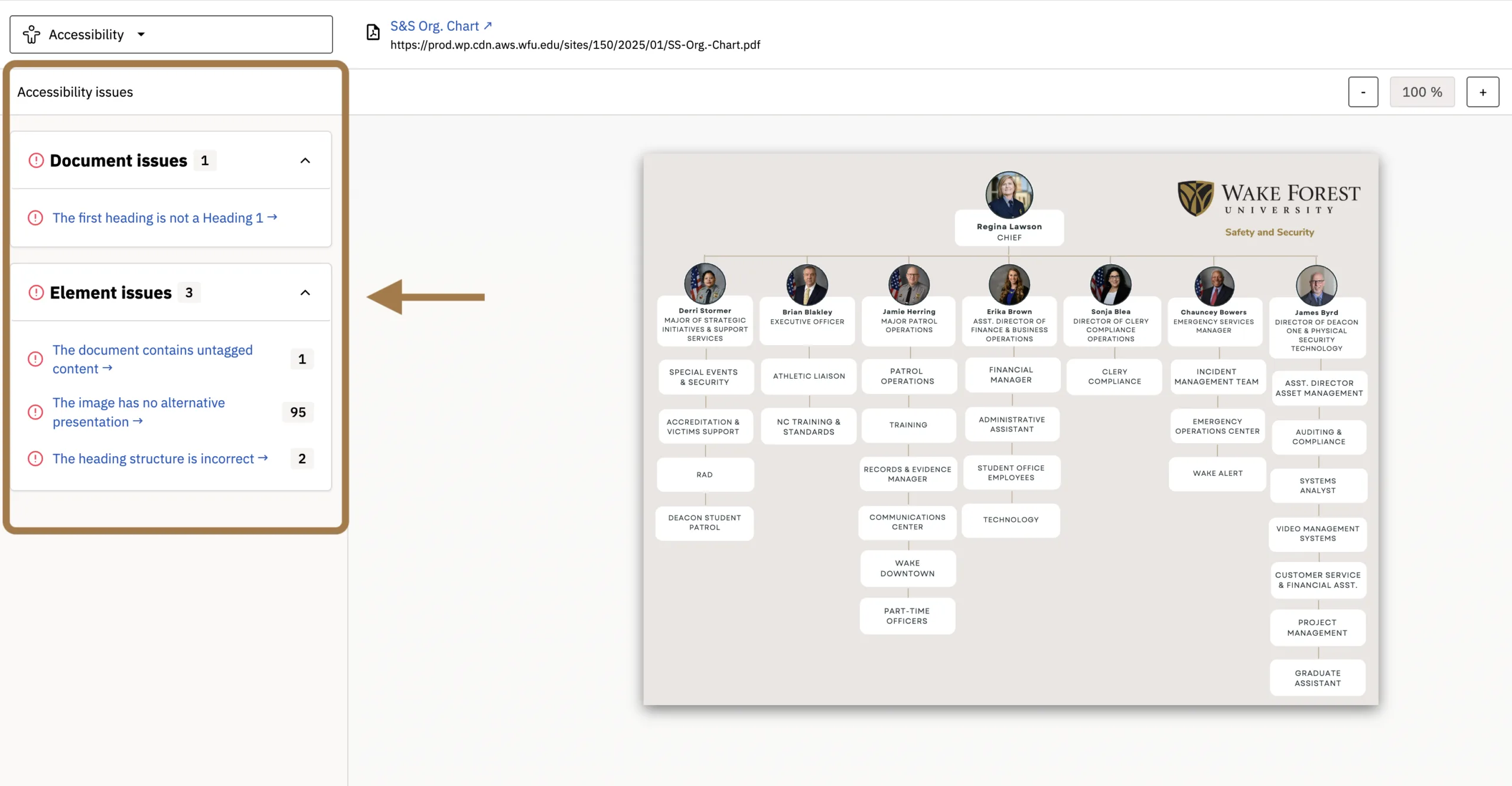
A new tab will open, displaying the PDF within the Siteimprove interface. On the left, you’ll see two categories for reviewing accessibility issues: Document issues and Element issues. Each category provides details about the issues preventing the PDF from being fully accessible.
Select an issue to highlight the affected area of the PDF. This helps you identify where to make the necessary corrections in the original PDF or source document.
You’ll also find a How to fix it section with instructions for addressing the issue.
As you review the PDFs listed that do not have tags or that are not machine-readable, work to consider a roadmap for reducing what is presented in PDF format and a strategy for remediating what must remain as a PDF. Shifting some content to other formats, such as HTML, can help you more efficiently make content accessible, leaving fewer PDFs that will require more advanced skills and additional time to remediate.
To review additional PDF issues, return to the Accessibility Report, select the next issue, and repeat these steps.
Your Siteimprove Toolbox

Quality Assurance
Discover the steps you can take to create a more effective, engaging, and user-friendly website experience for everyone.

Analytics
A successful content strategy starts with understanding how your website is performing and what your audience is looking for.

Accessibility
Accessibility isn’t just about what happens behind the curtain—it’s about the experience everyone has in front of it.

SEO & Search
Understanding how visitors find your website and what they want is an essential step in developing an effective content strategy.
Online Presentations
Whether you’re planning to attend an upcoming digital strategy presentation or want to revisit a previous session, explore the topics we cover and resources we share.
Digital Strategy
A strong digital strategy serves as the foundation for your website and every aspect of your digital marketing and communications. Here’s what you need to know.
Want to Chat?
We’re here to support your digital strategy efforts. Reach out with questions or schedule a consultation to discuss your website strategy and explore opportunities for improvement.