
Workflow Tips & Advice
Work Smarter in Siteimprove
Whether you’re new to Siteimprove or have been using the platform for years, there are always new ways to work more effectively. Using the platform strategically can help you focus on the issues that matter most, prioritize your efforts, and save valuable time.
To help you get the most out of Siteimprove, refer to the guide below for recommendations and strategies for working more efficiently and effectively in the platform.
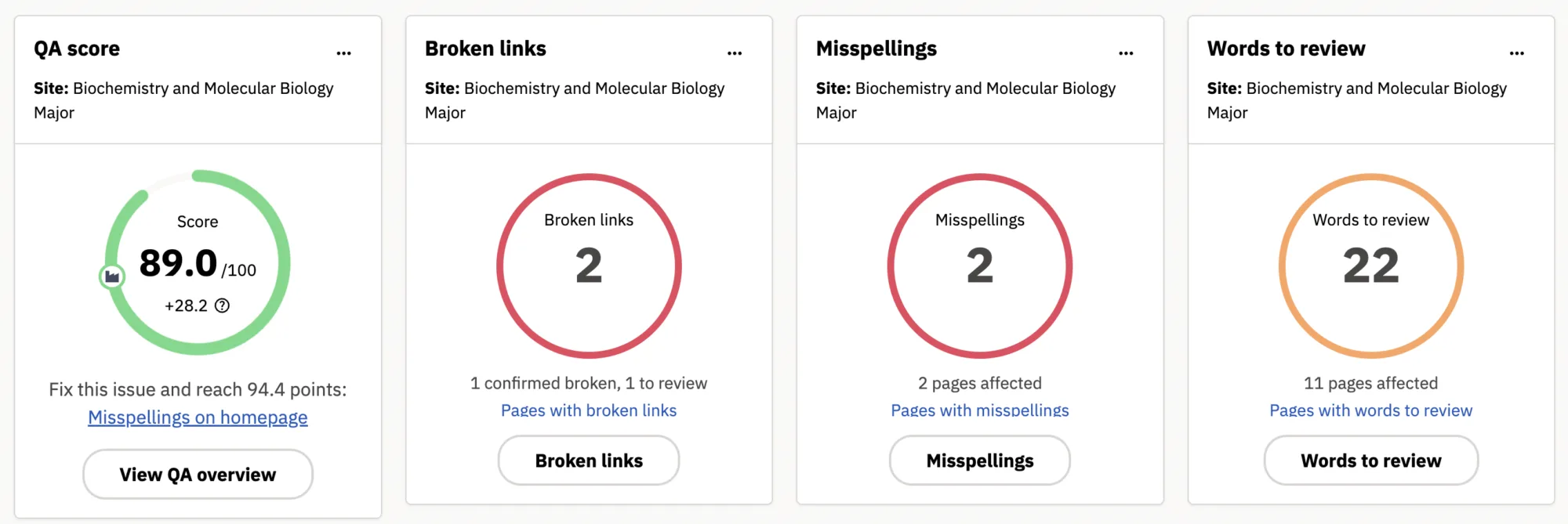
Work on broken links and misspellings first.
One of the best things you can do is address broken links and misspellings on your site as soon as possible. These issues are typically quick and easy to fix, especially when you address them regularly rather than allowing them to accumulate.
Keeping your site free of broken links and misspellings not only creates a better experience for visitors, but can also help improve your visibility in search engines and AI-powered search tools.
Next, focus on your Core Wins.
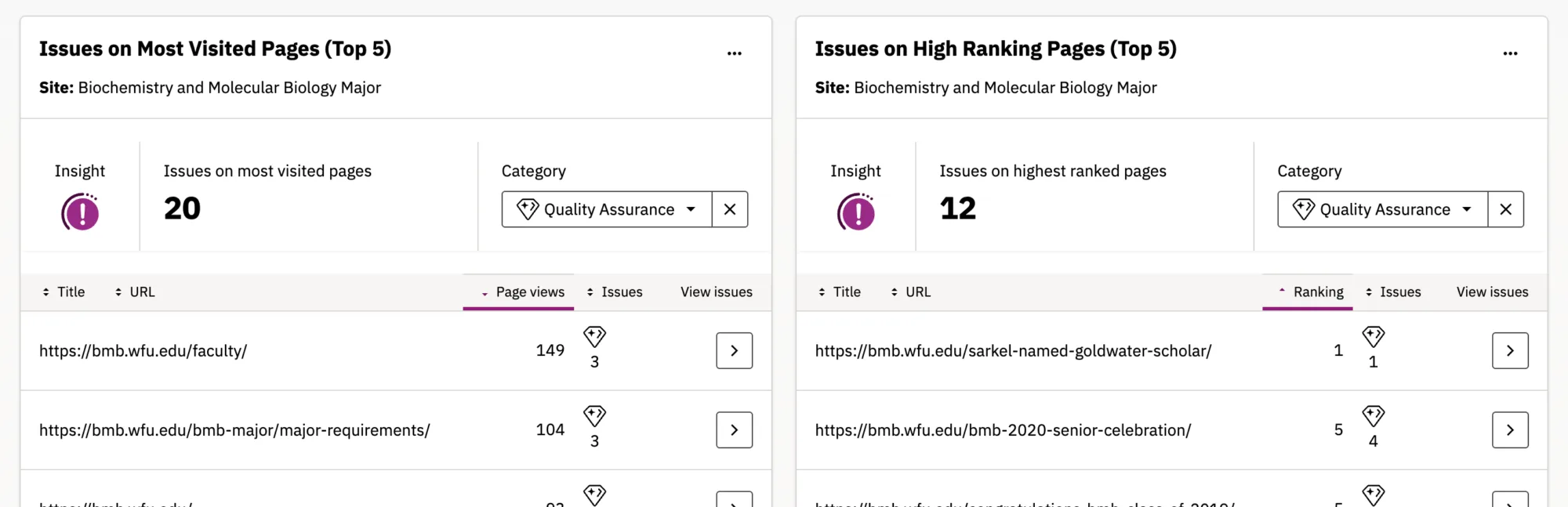
In addition to broken links and misspellings, other issues may negatively impact your website and the experience of your visitors. While some issues can be addressed quickly, others may require more time and consideration to resolve. Even when an issue can’t be fixed in a few minutes, it’s important to understand what needs attention and develop a plan for addressing it before it becomes a long-term problem for your visitors.
To help you prioritize these efforts, the Site Issues and General Health dashboard highlights QA issues found in your Core Wins that are affecting your most visited and highest-ranking pages. You may also select SEO and Accessibility issues from the Category dropdown.
Once you’ve addressed broken links and misspellings, we recommend reviewing these dashboards and addressing any additional issues you can resolve. For issues that require more time or resources, make note of them and develop a plan for addressing them over time before they become a bigger problem.
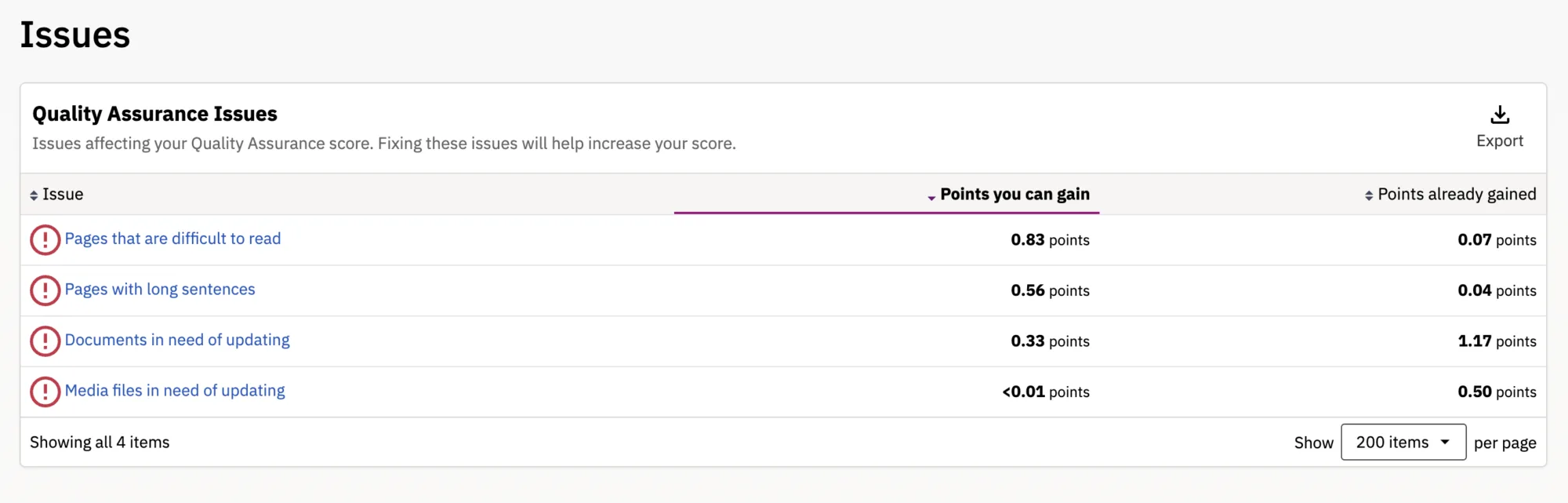
You can also choose to view your QA issues together in a single, focused report. This report isn’t designed for taking immediate action on individual issues. Instead, it provides a consolidated view of your QA issues, making it easier to review, understand, and prioritize them as part of your broader website maintenance efforts.
To view this report, you will need to:
- Select Quality Assurance from the left-side navigation
- Scroll to Issues and expand the sub navigation
- Select the sub link Issues
Take advantage of the Analytics dashboard.
When evaluating how well our website is performing and how people are engaging with it, there are a number of ways we can measure success. However, few are more valuable than our website analytics. While traditional metrics such as pageviews and visits no longer tell the complete story of how our content is performing, they can still provide valuable insight into what content users are interested in, where they came from, and what they do once they arrive.
Siteimprove offers a comprehensive analytics suite, which we discuss in greater detail in the Website Analytics section of this site. However, if you’re short on time or simply looking for a quick answer to a specific question, the Analytics Dashboard can be a helpful place to start. It provides an at-a-glance view of key data and can help you quickly find the information you need to better understand how your website and content are performing.
To access the dashboard, you just need to select the Analytics Dashboard from your Dashboard dropdown menu.
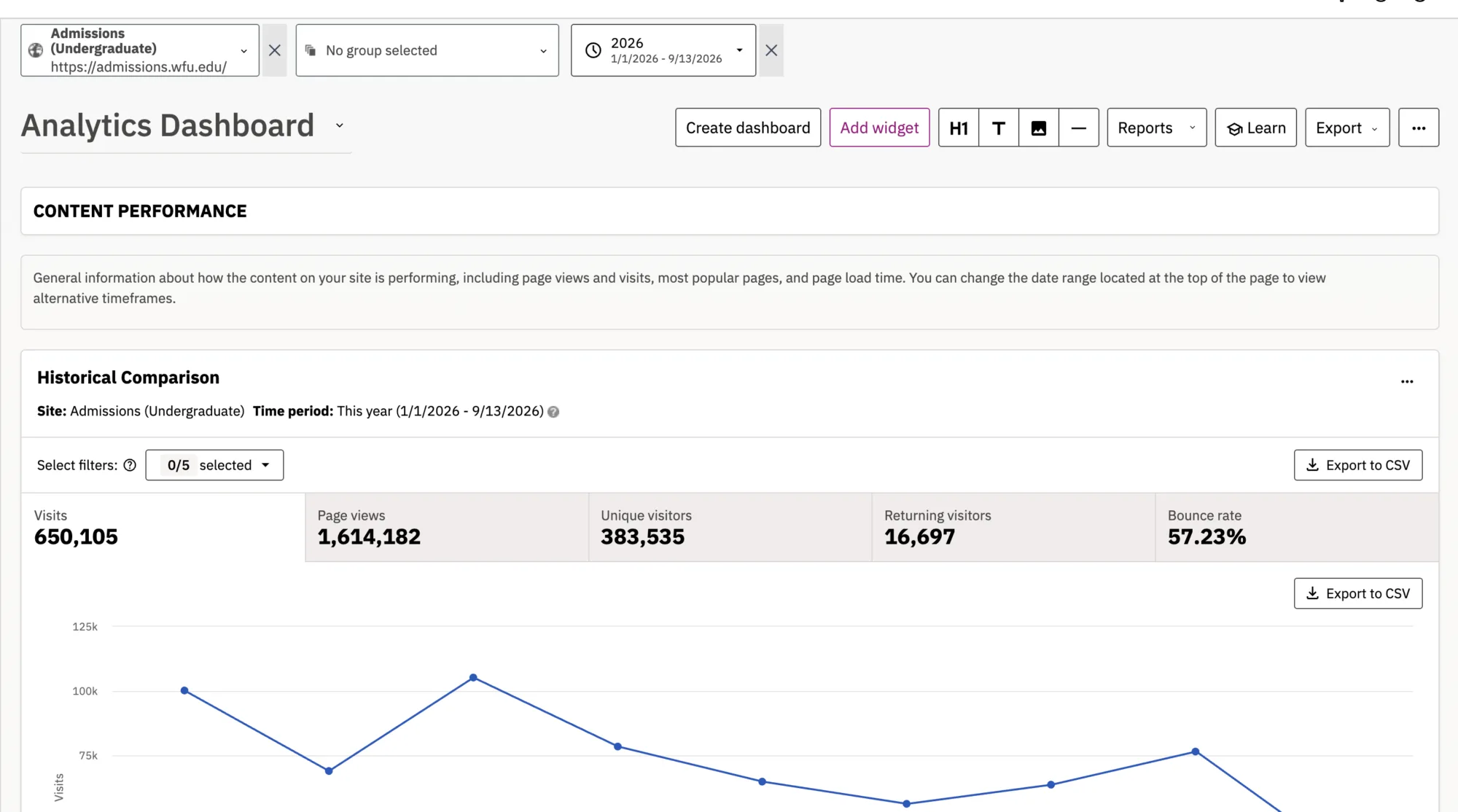
Note: The information contained within this dashboard is the same as what Siteimprove users receive at the beginning of each month in their Analytics report.
Create your own custom dashboard.
While many of Siteimprove’s built-in dashboards can provide the data and insights you need to make informed decisions about the health and performance of your website, you may find it even more useful to create a custom dashboard tailored to the information that matters most to you.
Siteimprove offers hundreds of widgets that you can use to build your own dashboard, and one of the biggest advantages is the ability to mix and match widgets across different modules. For example, if you want to monitor broken links alongside pageviews, you can bring both metrics together on a single dashboard. This makes it easier to see the information you care about most in one place and quickly identify trends, issues, and opportunities for improvement.
If you’re interested in a custom dashboard, reach out to Pete Nowak at for assistance on getting one set up.
Use the Siteimprove WordPress plugin.
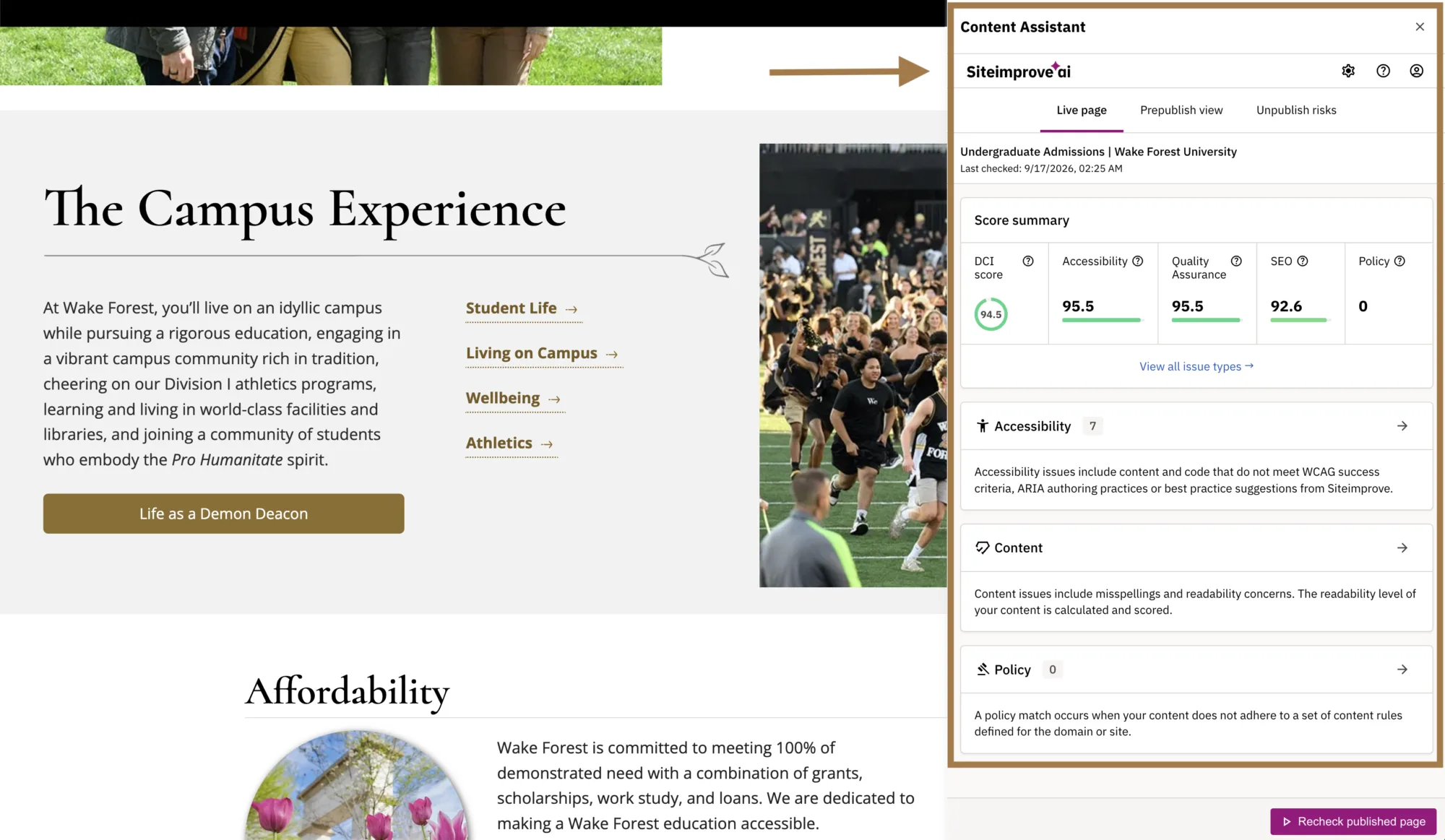
Using the Siteimprove WordPress plugin is a great way to regularly monitor specific pages on your site for issues or other areas that could negatively affect the visitor experience.
If you’ve identified pages that are particularly important or high-performing and want to keep an eye on them without having to log into the Siteimprove platform each time, the WordPress plugin makes it easy. You can view quality assurance, accessibility, and SEO scores and related information directly within the page you’re editing, without leaving WordPress.
If you’d like this feature set up for your site, please send us a Siteimprove Support Form to let us know what site(s) you’d like it activated on.
Know what people are searching for.
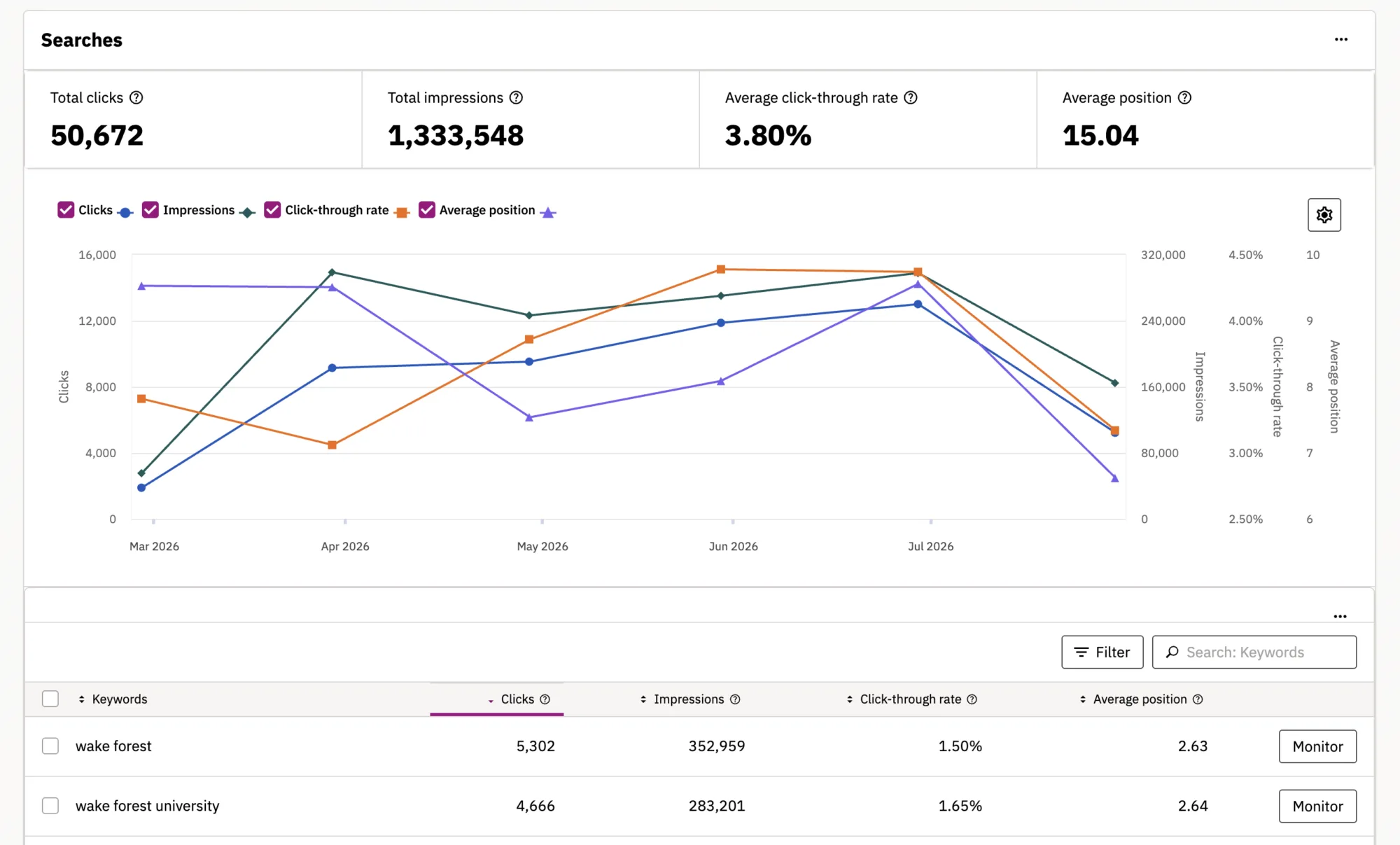
While search engines provide only a partial view of what your audience is looking for, search data can still offer valuable insight into which topics and content matter most to your visitors—and where you may want to focus your efforts.
As search engines continue to evolve alongside GenAI-powered tools, it’s increasingly important to create clear, useful, and effective content that meets your audience’s needs and improves your visibility across search experiences.
Siteimprove’s Google Search Console: Search Terms widget provides valuable insight into the keywords and phrases people use when your site appears in search results, as well as the number of clicks and conversions generated from those searches.
Start by looking at your top five or ten search terms. Do they align with what you would expect people to search for when looking for the content or services your site provides? Which pages receive the most visits from search-result clicks? Are there any unexpected search terms that could reveal opportunities to improve or expand your content?
This information can help you better understand how people are finding your site, identify content opportunities, and make more strategic decisions about where to focus your time and effort.
Your Siteimprove Toolbox

Quality Assurance
Discover the steps you can take to create a more effective, engaging, and user-friendly website experience for everyone.

Analytics
A successful content strategy starts with understanding how your website is performing and what your audience is looking for.

Accessibility
Accessibility isn’t just about what happens behind the curtain—it’s about the experience everyone has in front of it.

SEO & Search
Understanding how visitors find your website and what they want is an essential step in developing an effective content strategy.
Online Presentations
Whether you’re planning to attend an upcoming digital strategy presentation or want to revisit a previous session, explore the topics we cover and resources we share.
Digital Strategy
A strong digital strategy serves as the foundation for your website and every aspect of your digital marketing and communications. Here’s what you need to know.
Want to Chat?
We’re here to support your digital strategy efforts. Reach out with questions or schedule a consultation to discuss your website strategy and explore opportunities for improvement.